Add/Edit Links
To add/update links in your content:
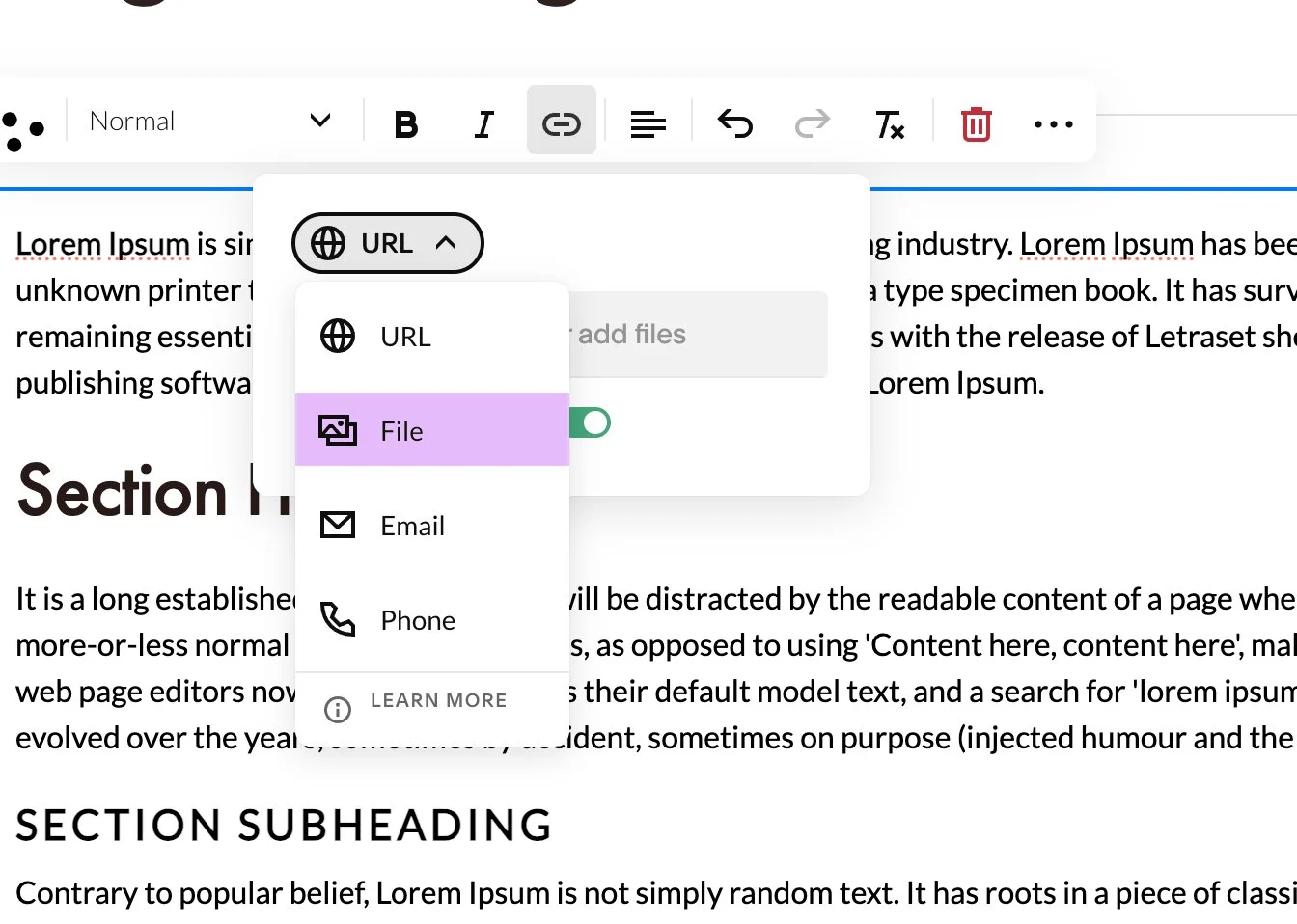
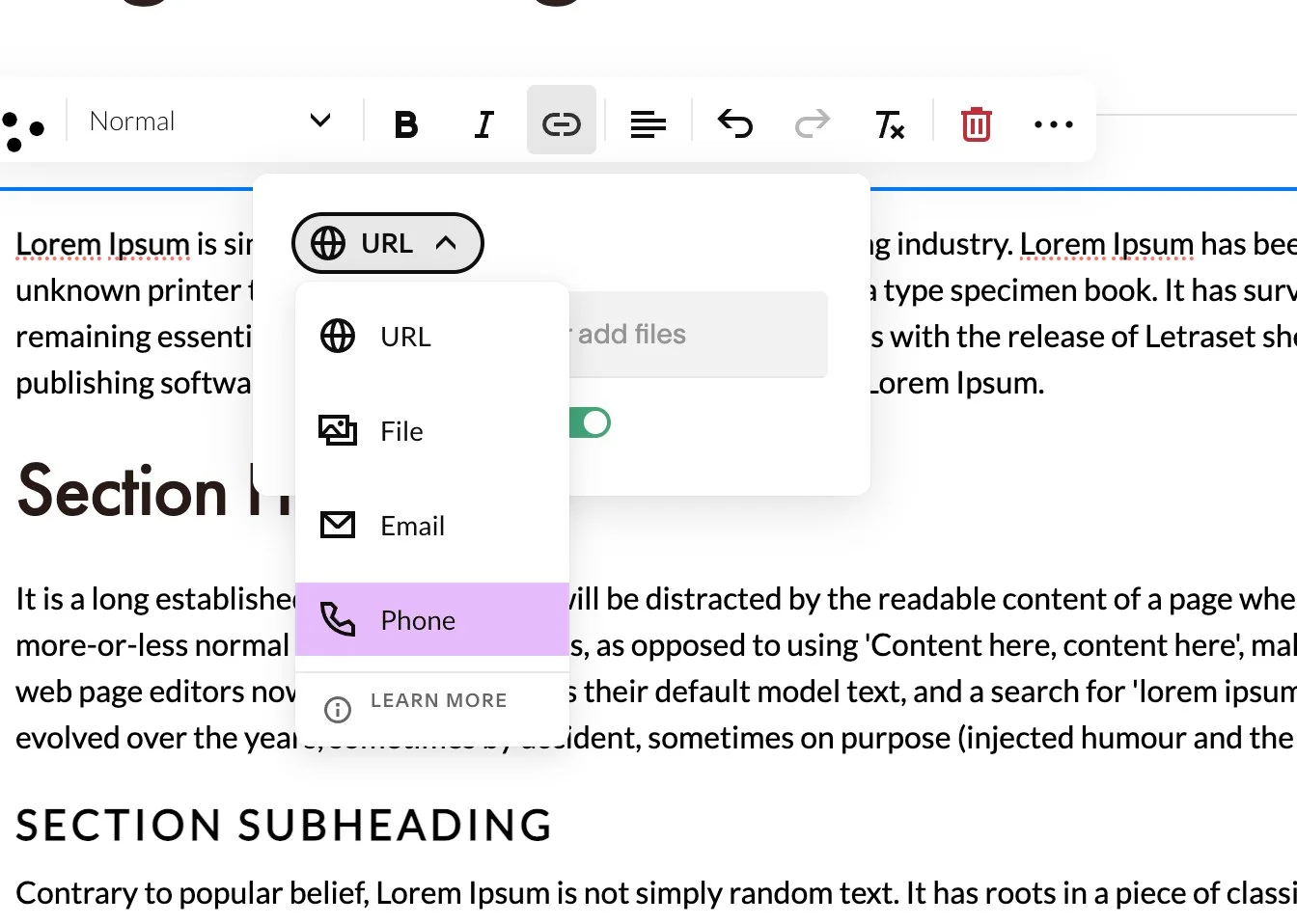
While editing a page, select the text you want to turn into a link. Then open the Link option from the text editing toolbar.
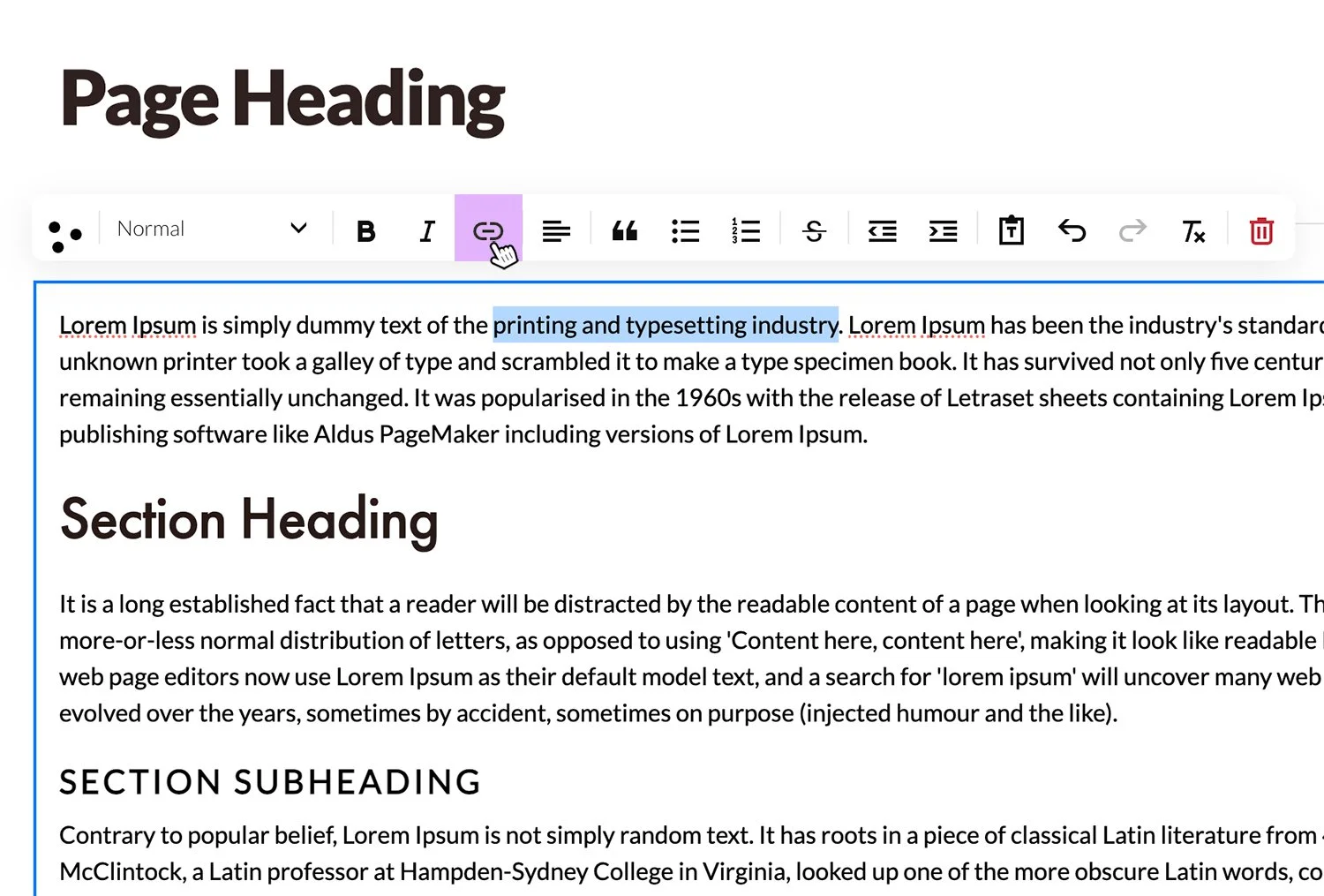
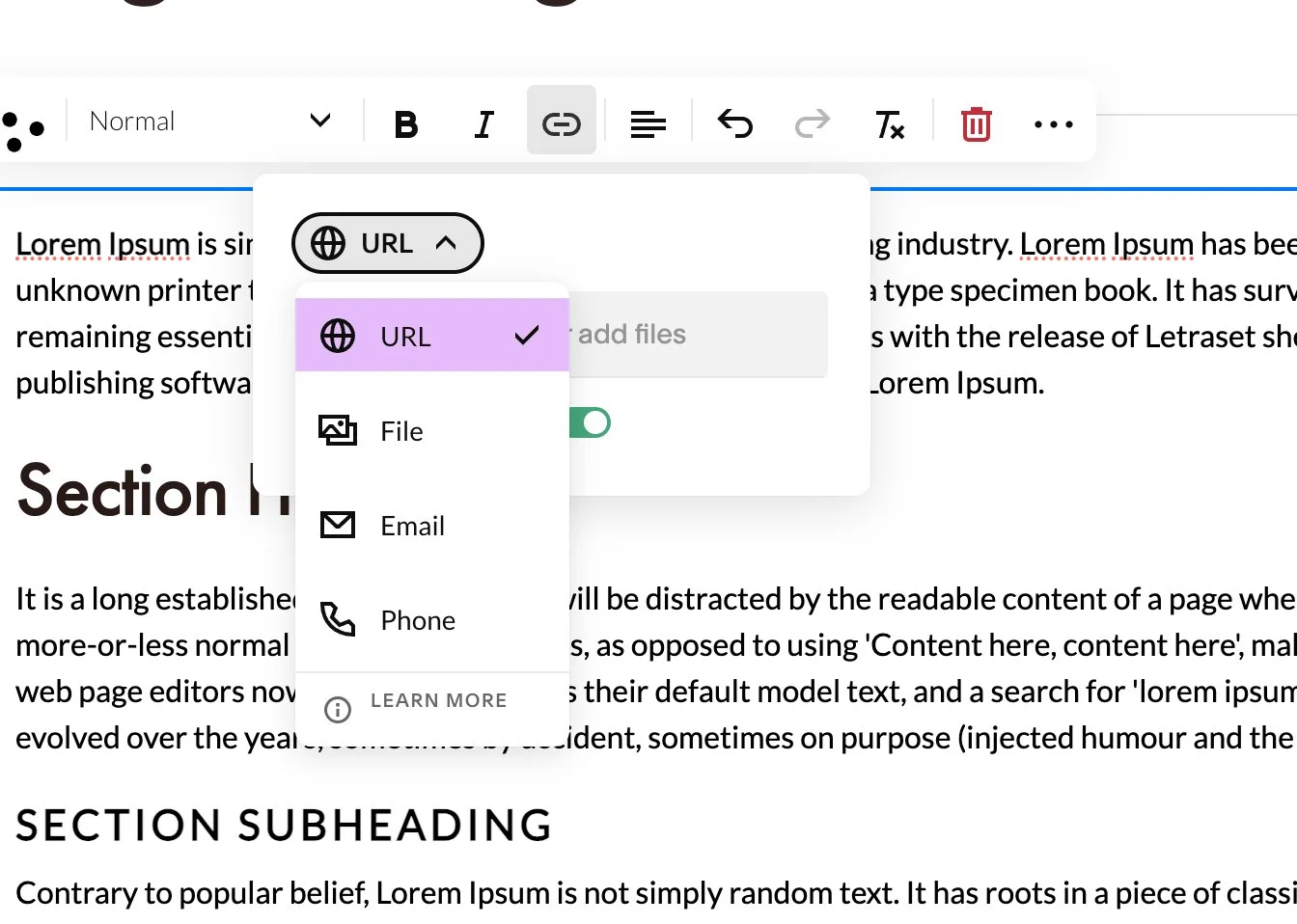
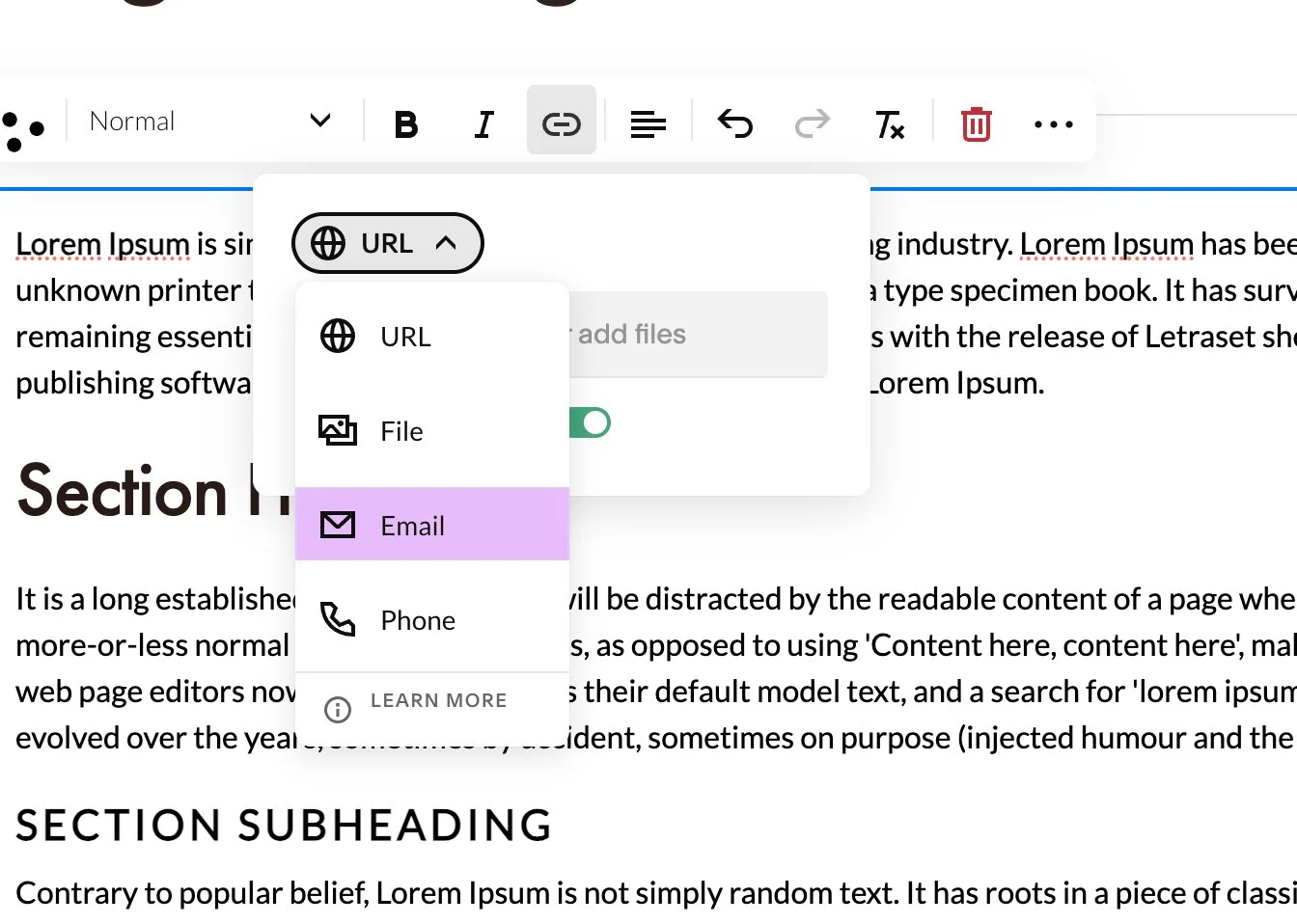
2. In the Link settings, choose the type of link you want to create:
A web address
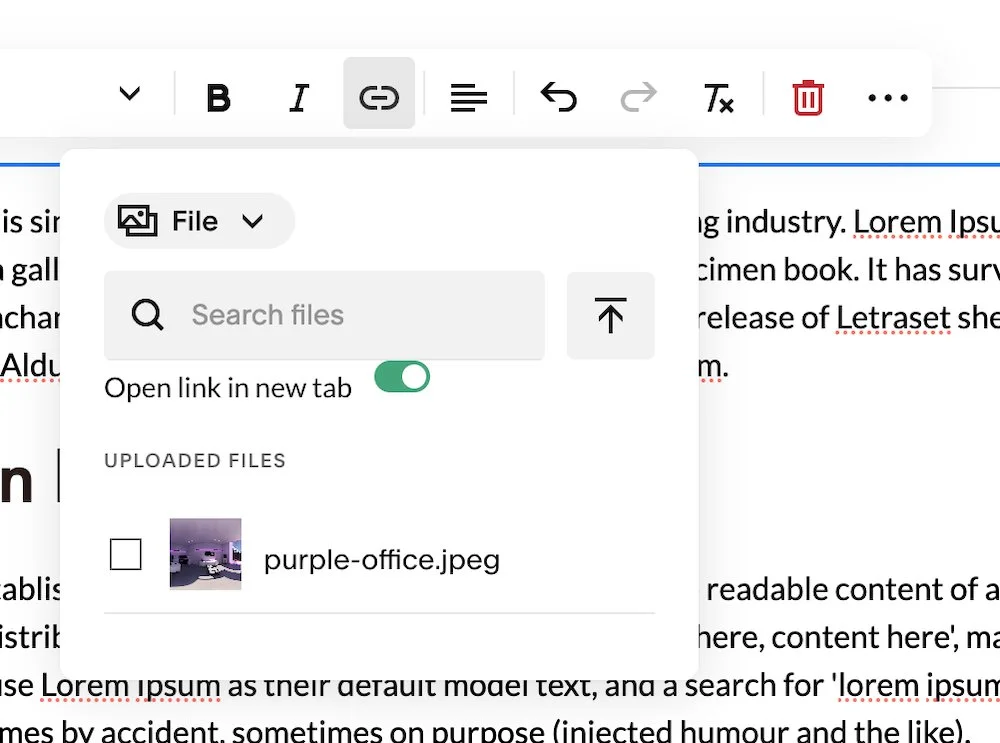
A file (such as a PDF or Word document)
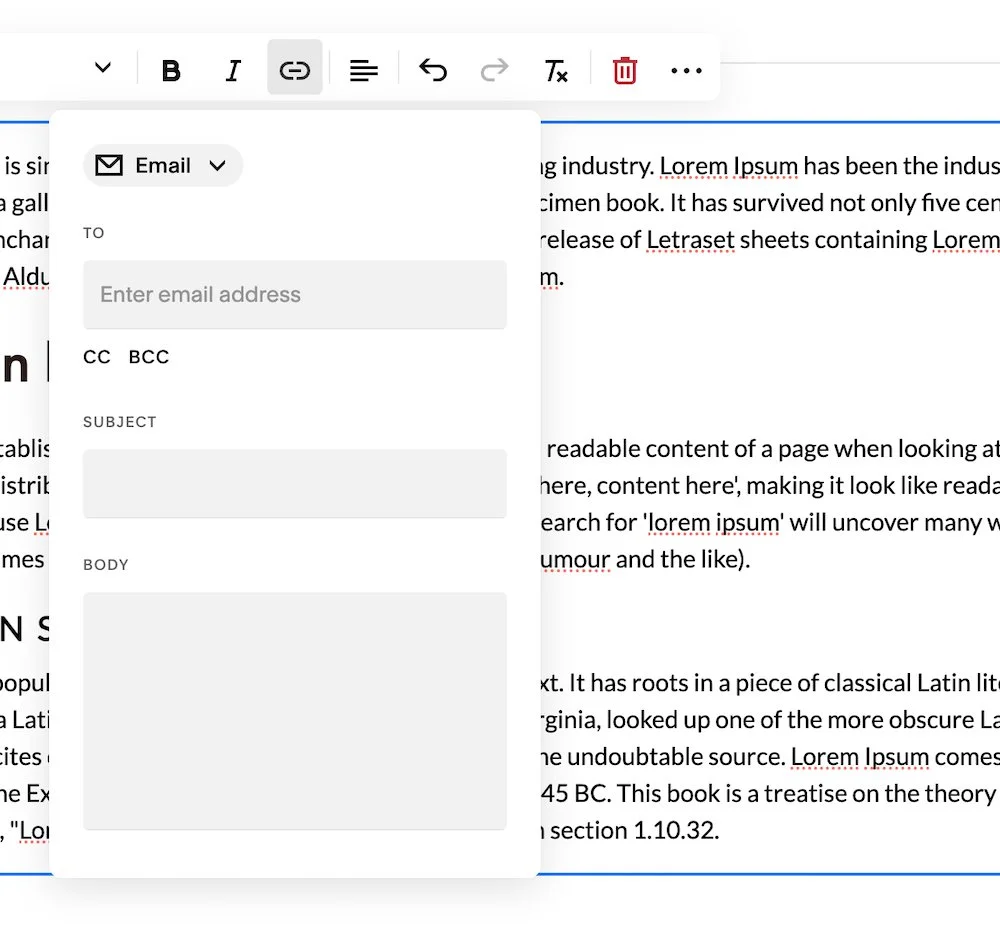
An email address
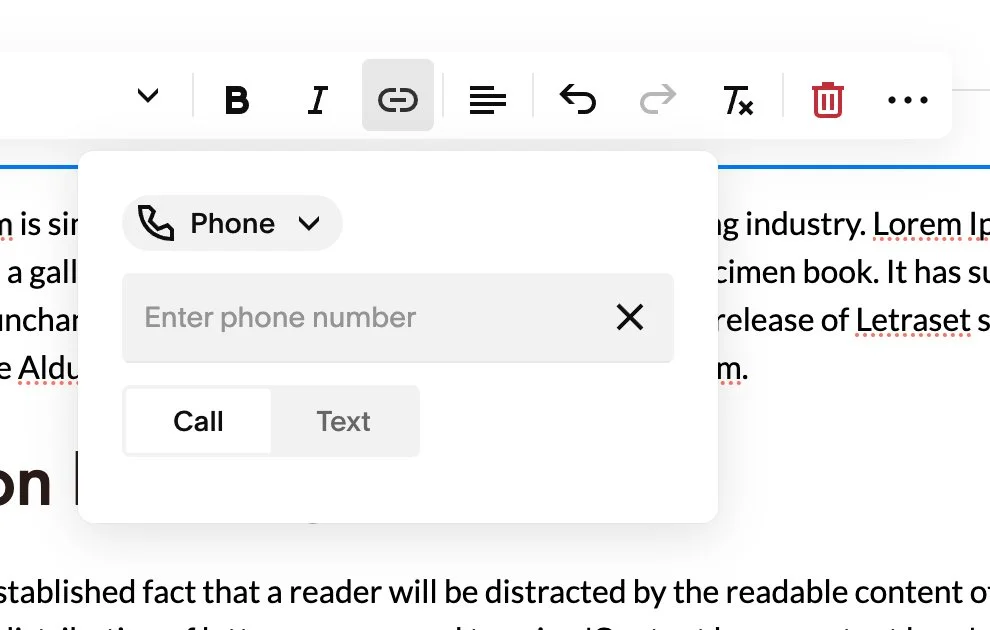
A phone number
LINK TO A WEB ADDRESS
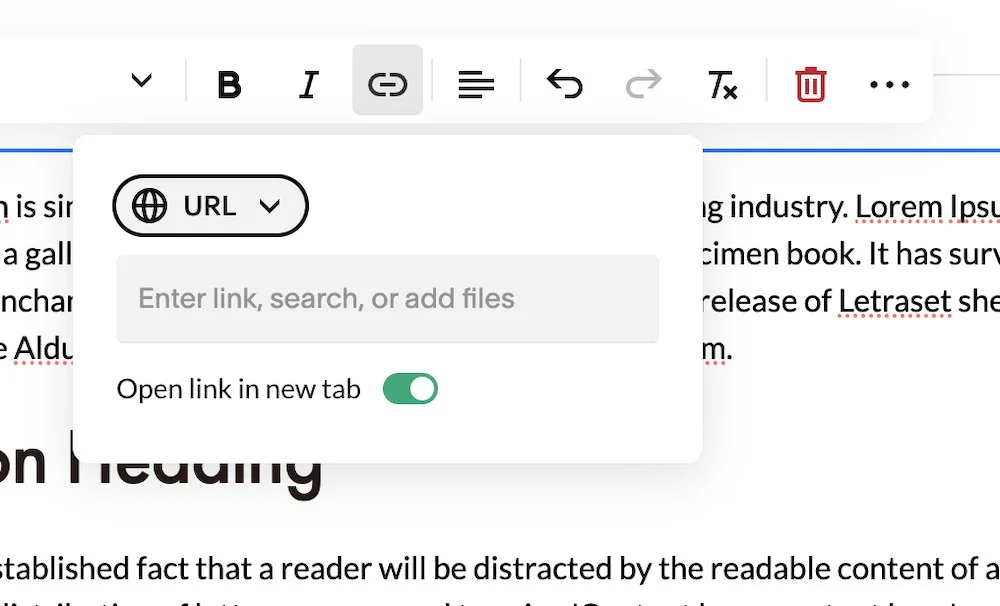
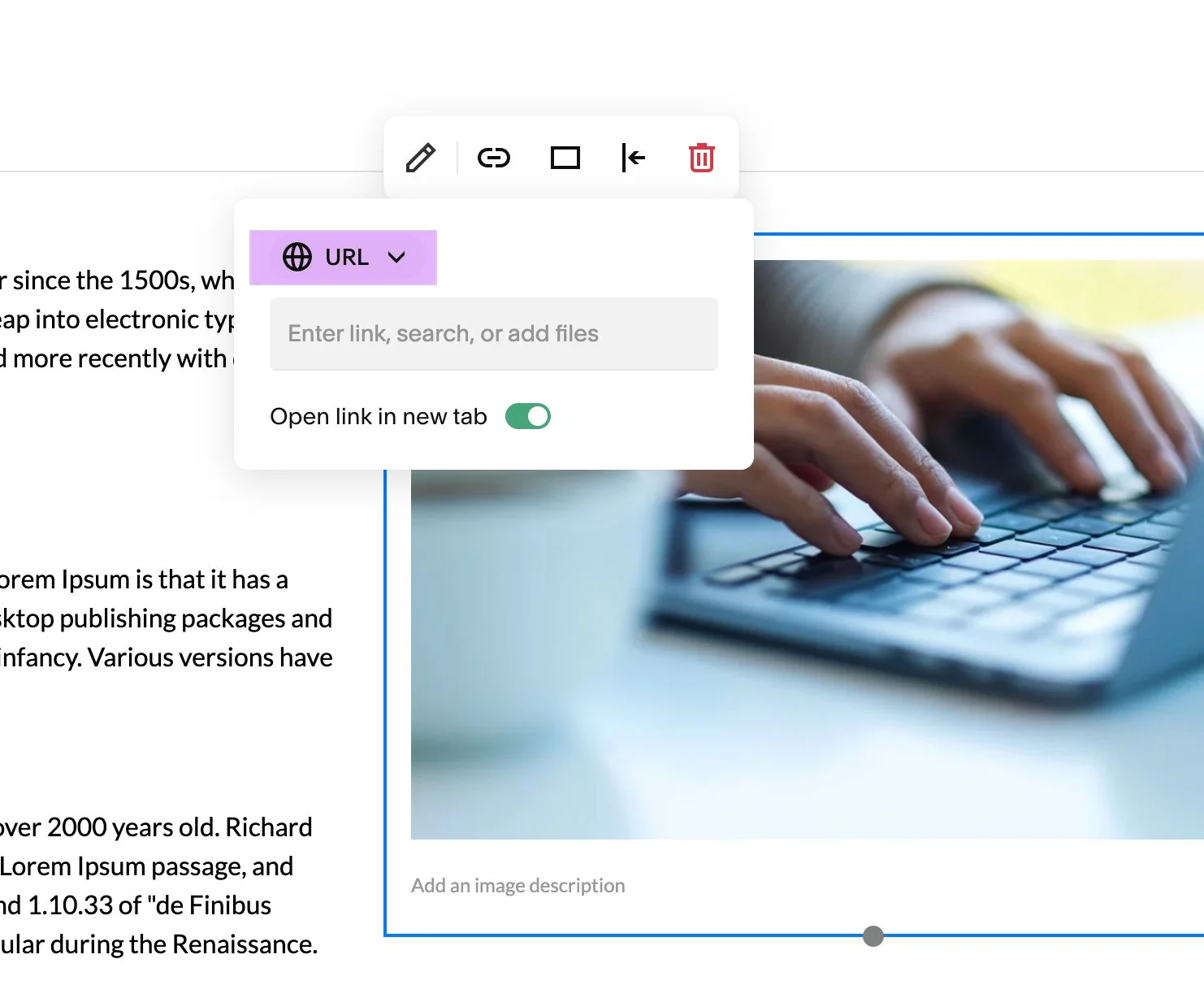
Enter a website URL or select a page from your site in the Web Address field. You can choose whether the link opens in the same browser tab or a new browser tab.
LINK TO A FILE
Select a file from the list of previously uploaded files, or upload a new file from your computer. You can choose whether the file opens in the same browser tab or a new browser tab.
LINK TO AN EMAIL ADDRESS
Enter the email address you want the link to open. Optionally, you may also add a subject line and message body.
LINK TO A PHONE NUMBER
Enter the phone number you want the link to use. You can choose whether the link starts a phone call or opens a text message.
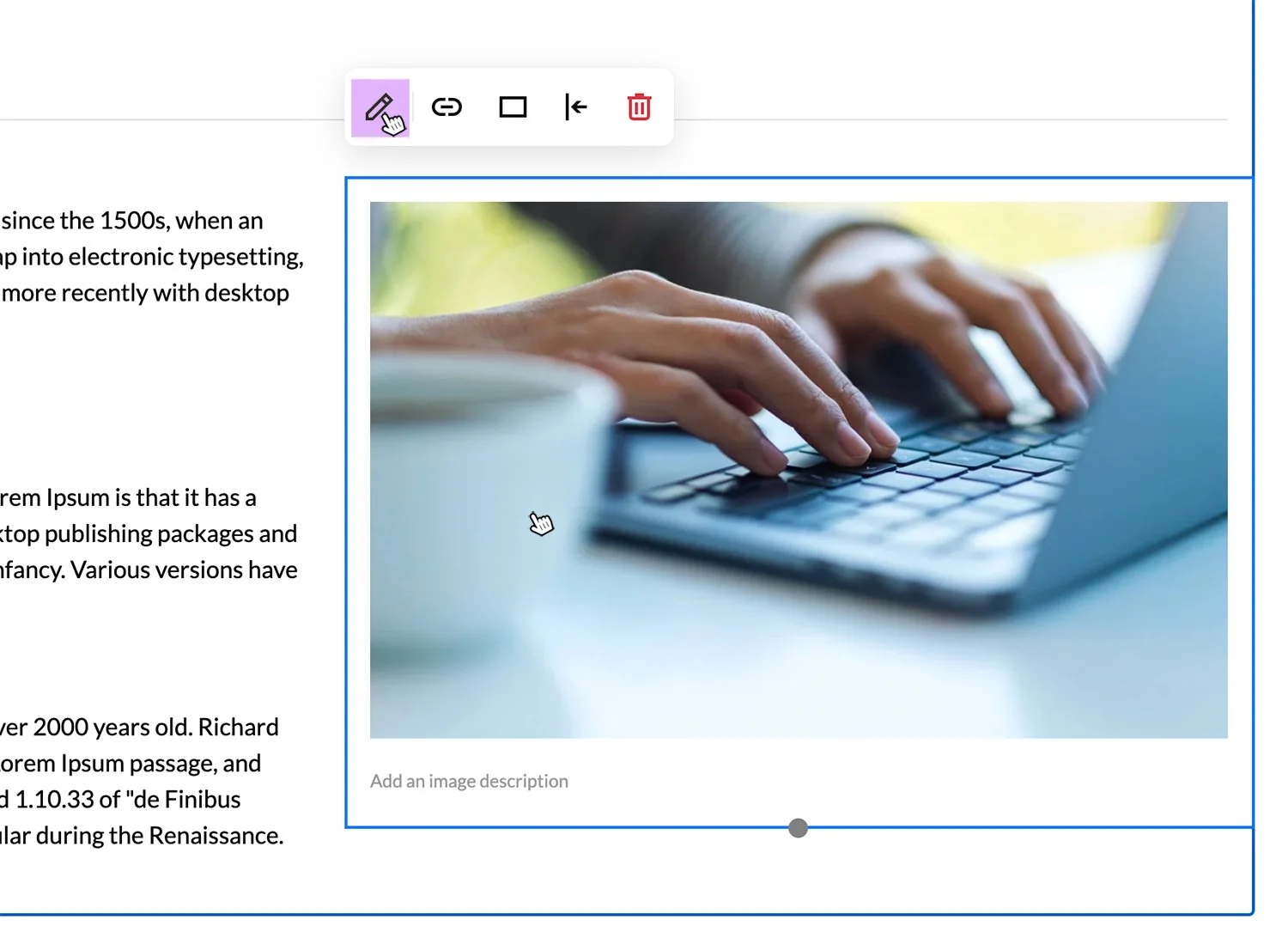
You can also add links to images. Select the Image Block, then open the Link settings and choose the same link options available for text links.
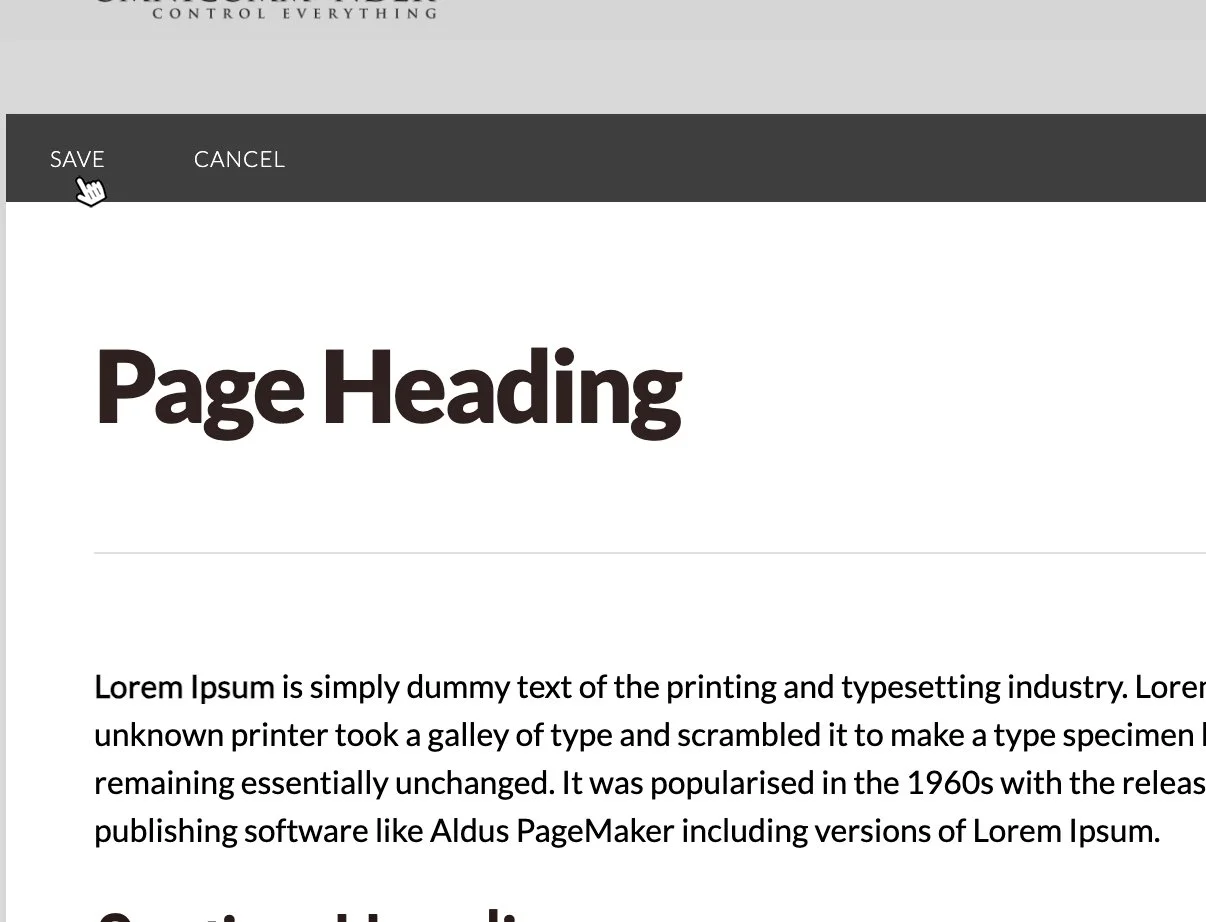
When you are finished, select Save to apply your changes.
3. You can also apply links to images in the page content. Simply click on the Image Block, then you have the same link selections as you have for text links.
4. Once done, click Save in the upper left side of the content.