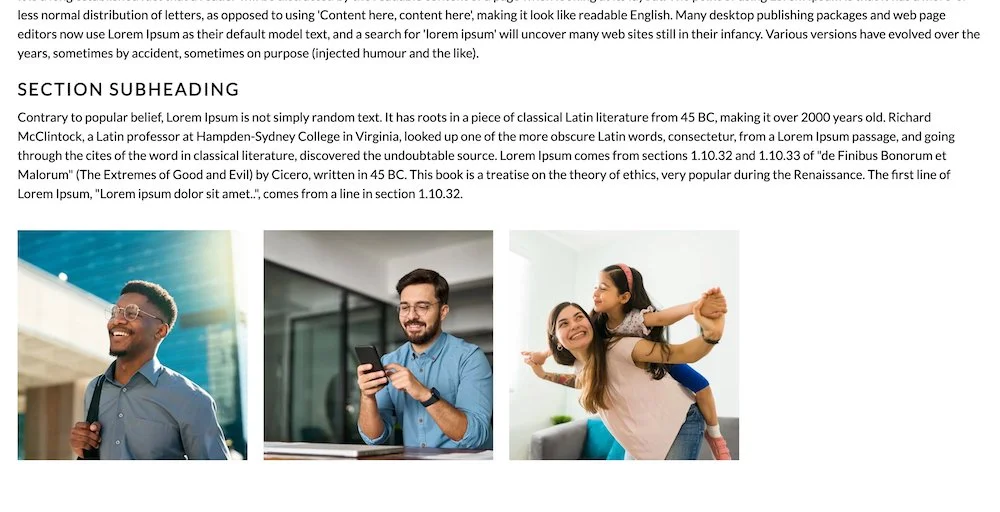
Image Galleries
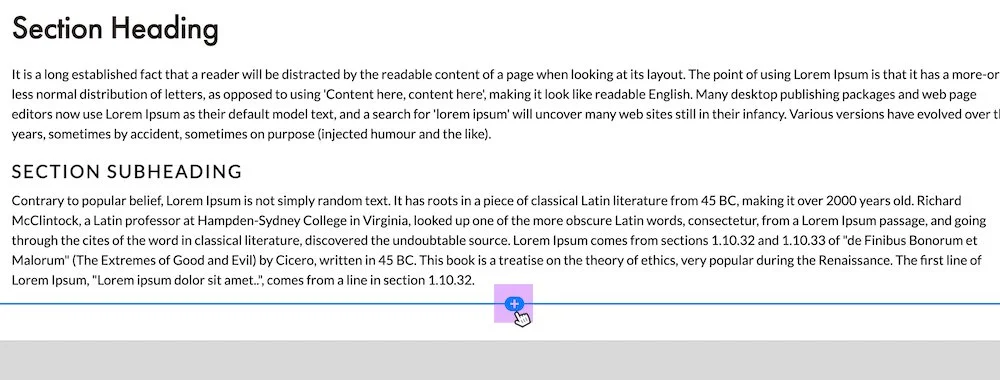
To add/update image galleries TO your site pages:
1. While editing a page, open the Add Block option for the page content at the location where you want the gallery to appear.
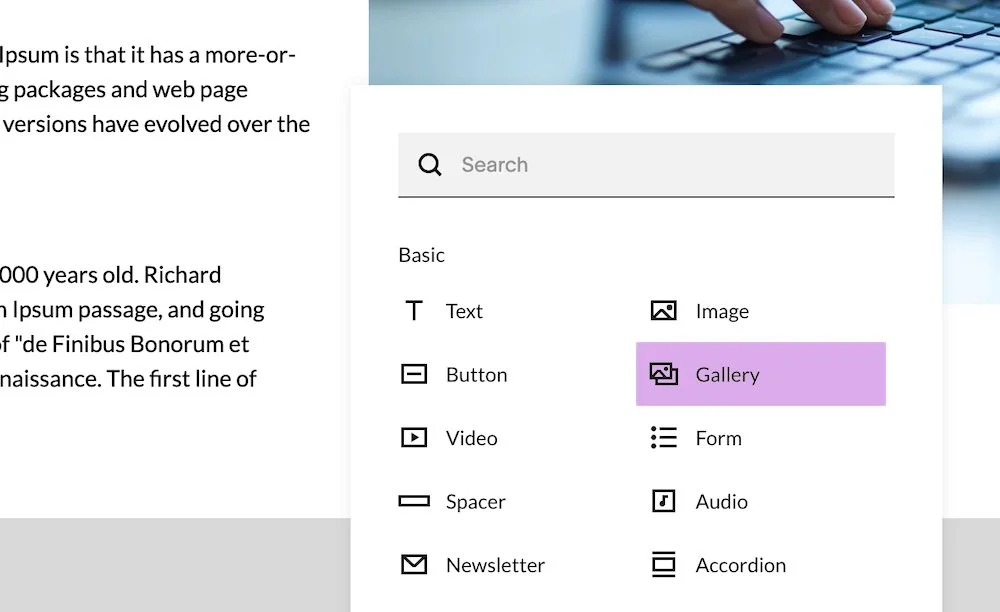
2. From the list of available content blocks, select Gallery.
3. The Gallery settings panel will open, allowing you to add images and adjust the gallery’s appearance.
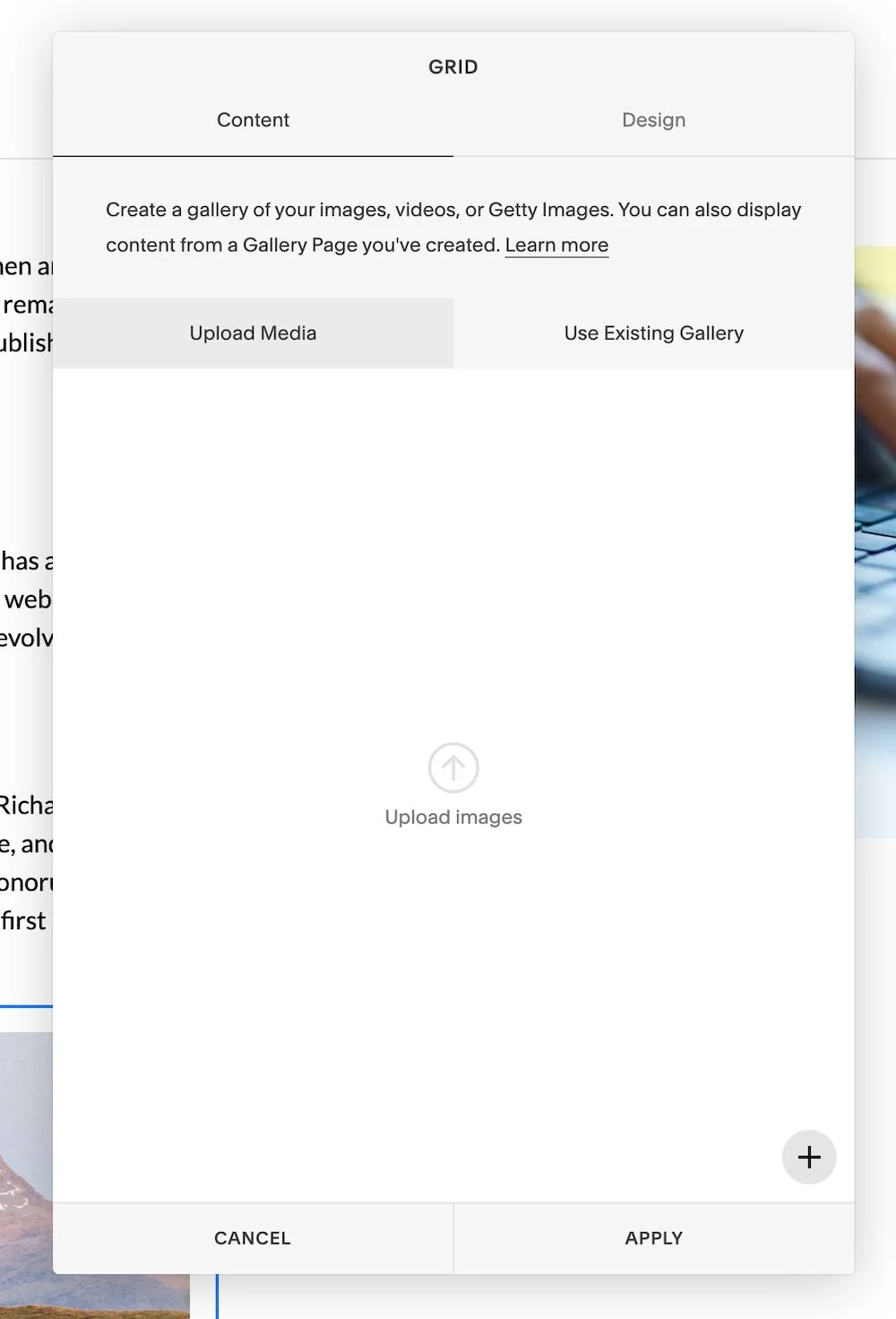
4. To add images, use the Upload Images option to select image files from your computer, or add images using the available image upload controls.
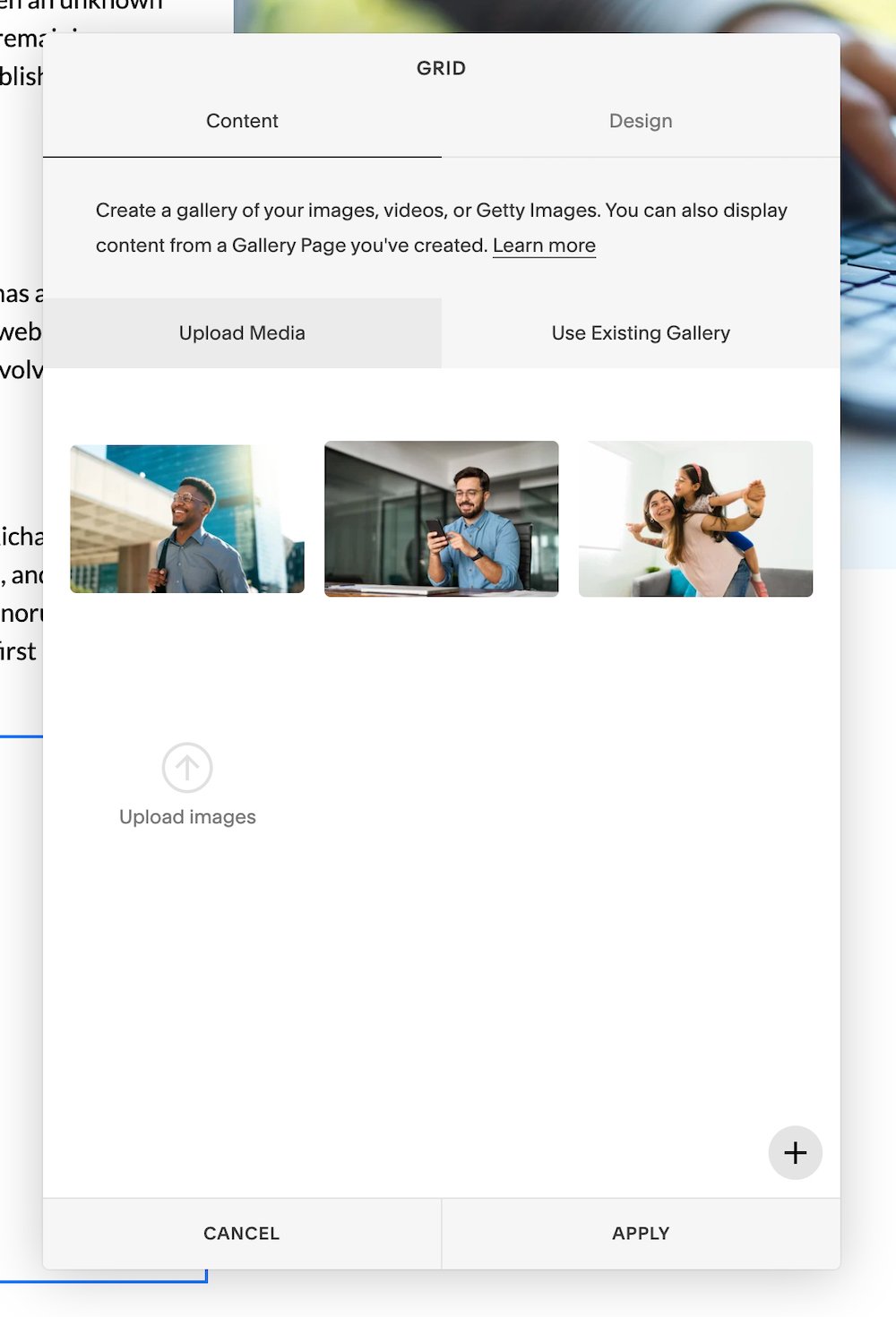
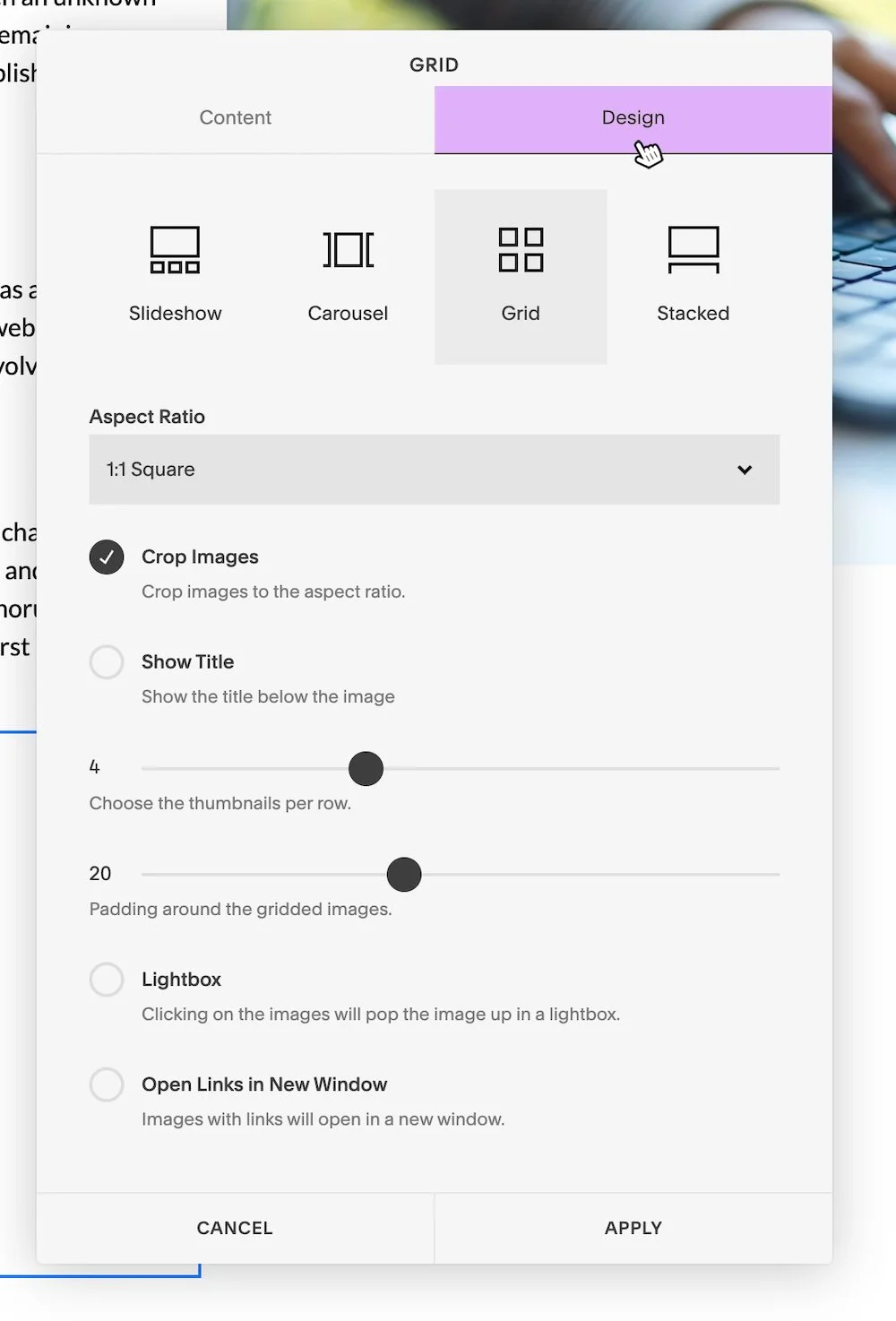
5. To customize the appearance of the gallery, open the Design settings within the Gallery panel. From there, you can:
Choose a layout style
Set the image orientation
Control how many images appear per row
Adjust the spacing between images
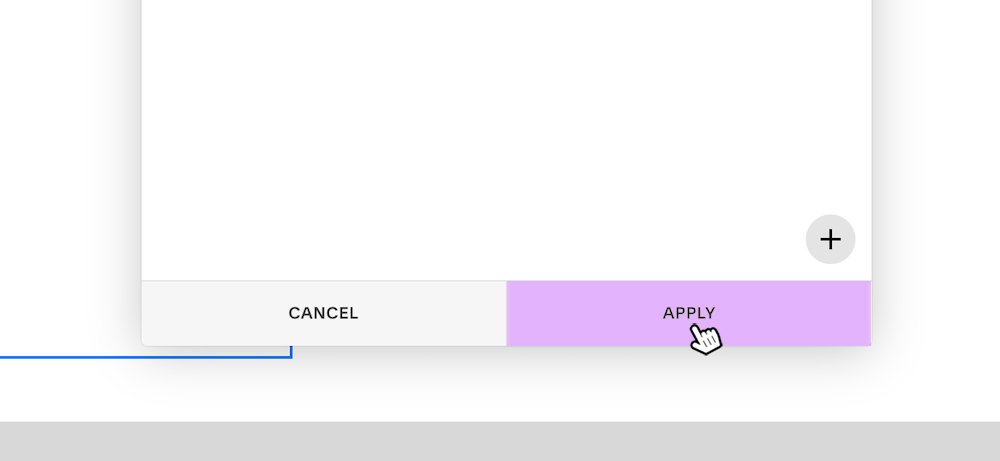
6. When you are finished configuring the gallery, select Apply to save the gallery settings.
7. After adding the gallery to the page, select Save to publish your changes.