Promotional Pop-up
To update your Pop-up:
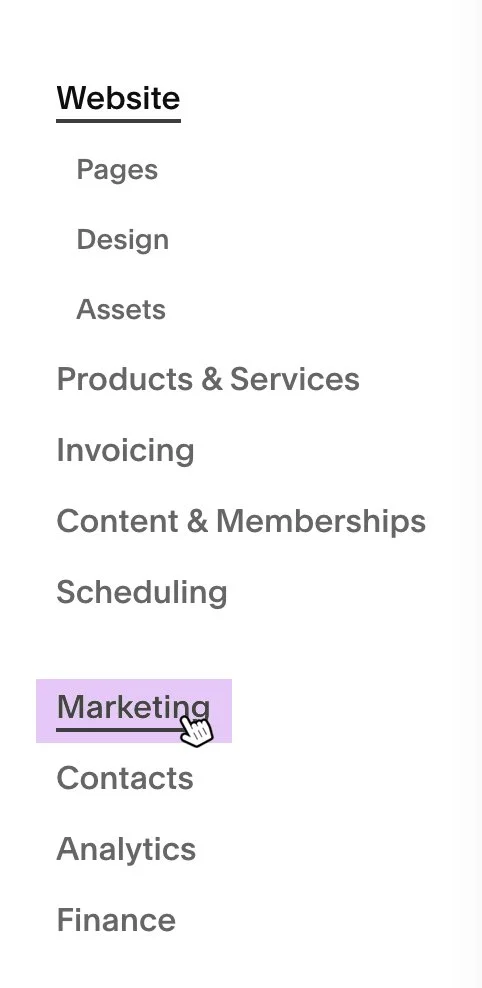
1. Open the CMS main menu and select Marketing.
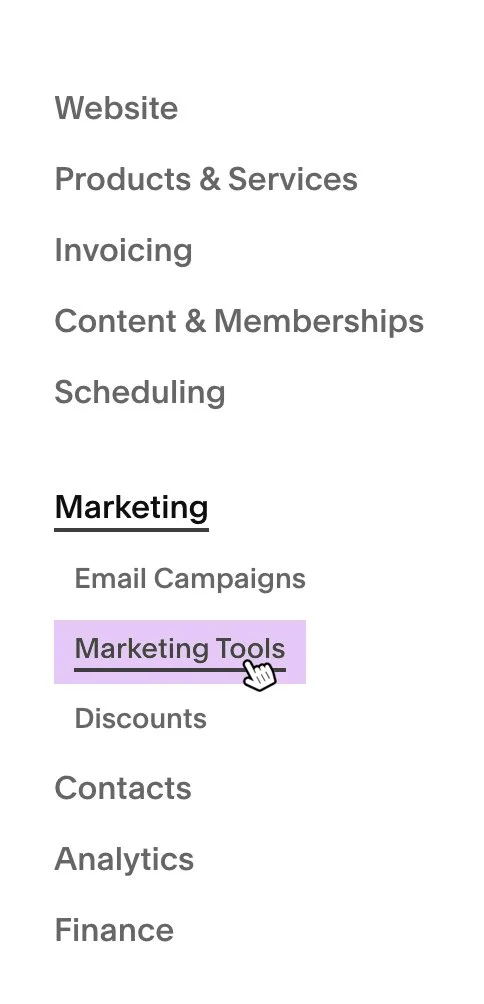
2. From the Marketing section, open Marketing Tools.
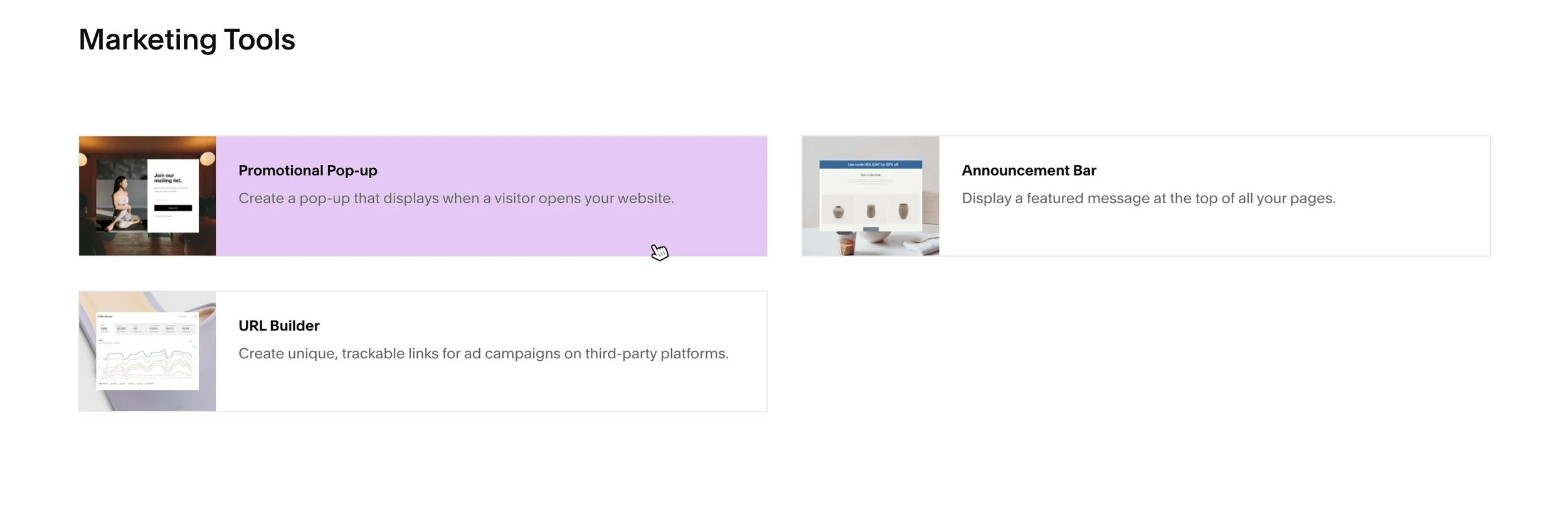
3. Select Promotional Pop-up from the list of available tools.
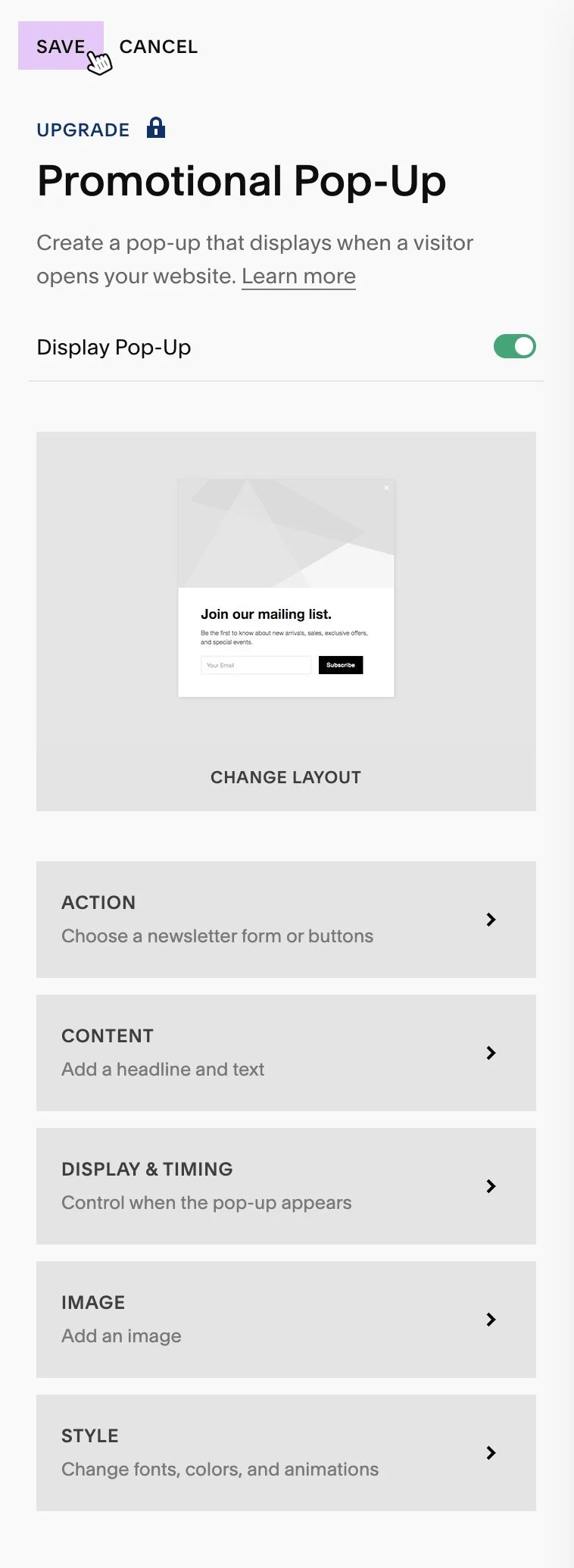
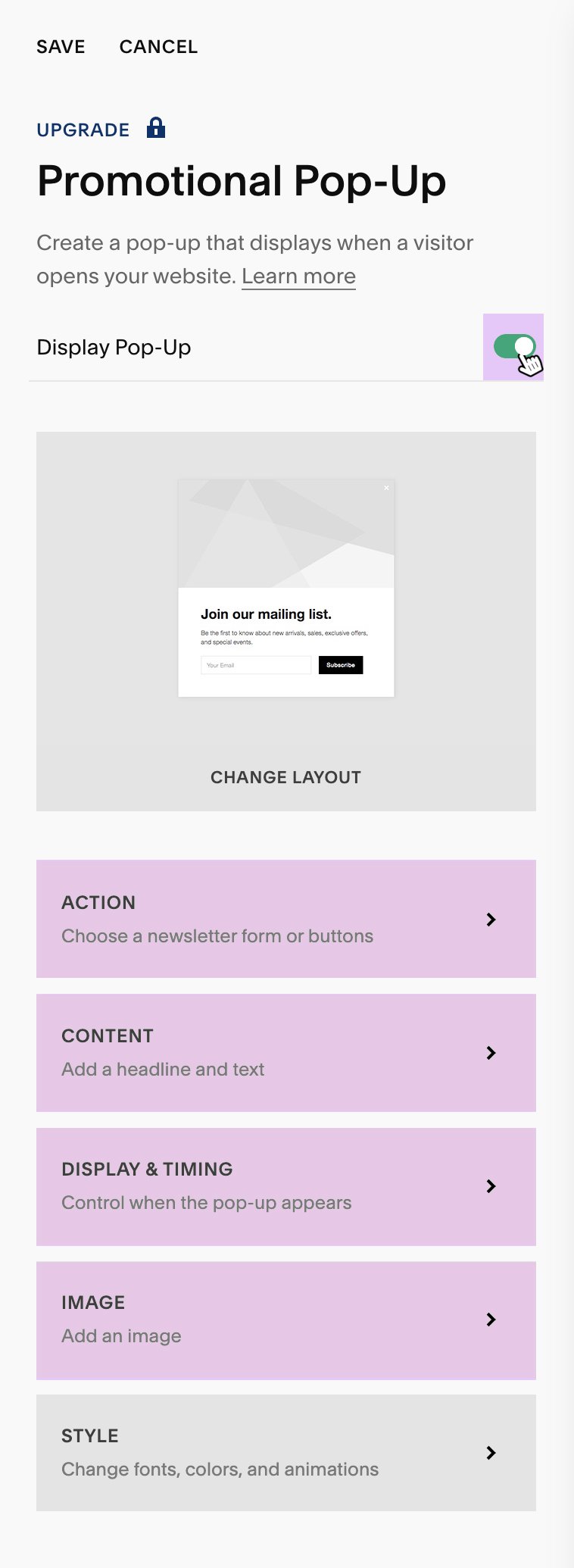
4. In the Promotional Pop-up settings, you can enable or disable the pop-up and update its individual components:
Action
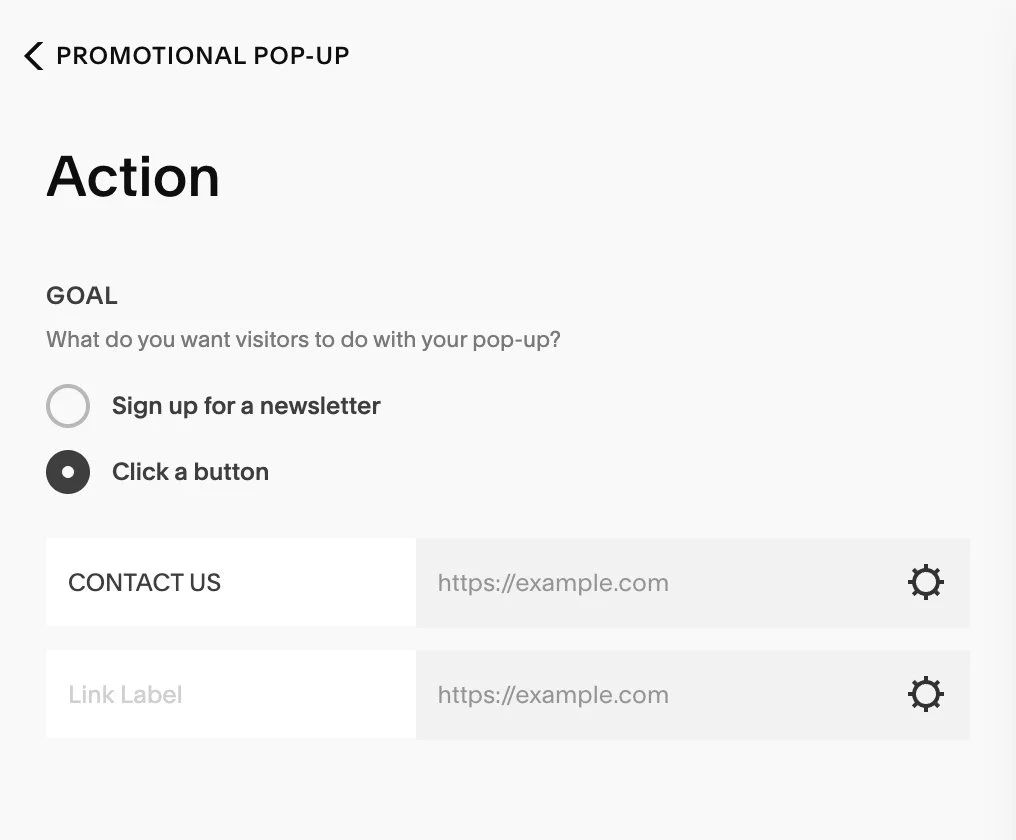
The Action settings control the pop-up button and its destination link.
Enter the button label text in the Button Label field.
Open Link Settings for the button to choose the destination (using the same link options available for site pages).
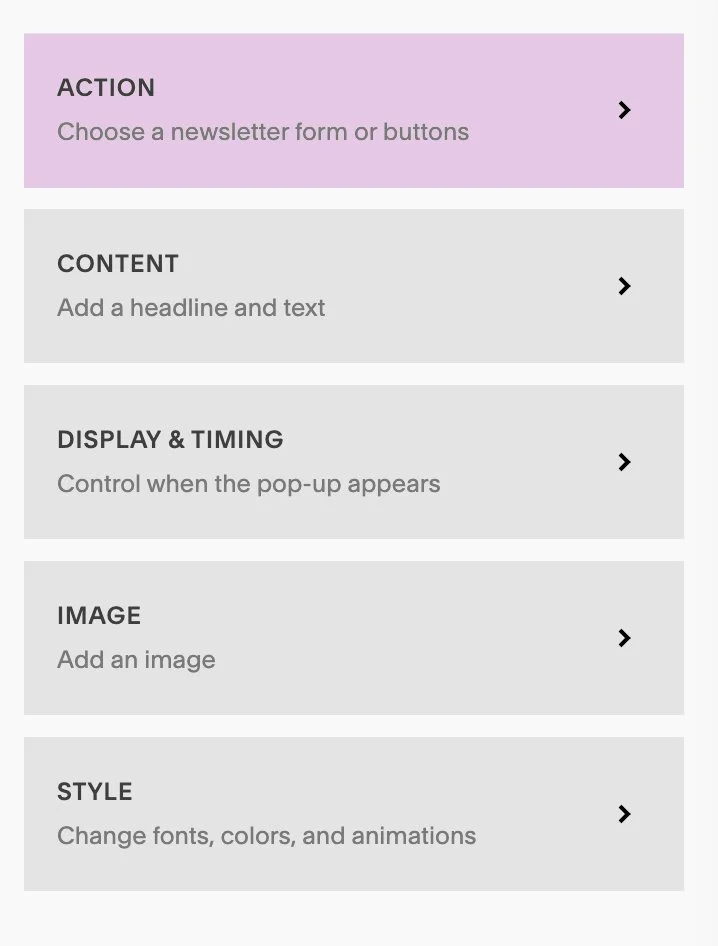
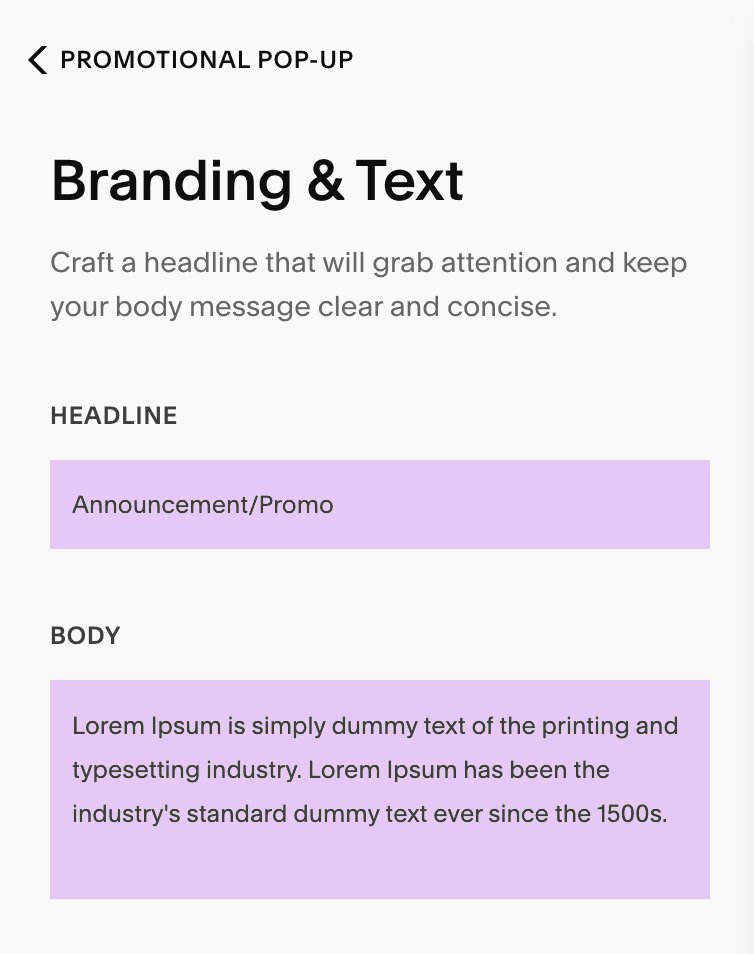
Content -
Use the Headline field to add the pop-up title or heading.
Use the Body Content field to add supporting text.
Tip: Keep the body content brief (about 2–4 sentences). If you need to share more information, use the Action button to link users to a page with full details.
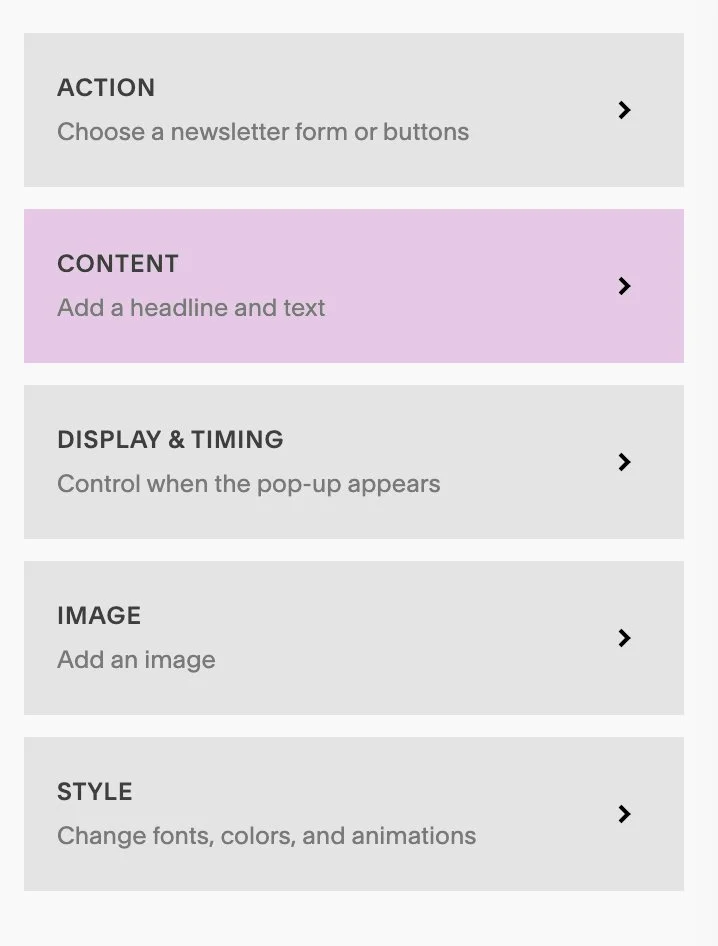
Display & Timing -
The Display & Timing settings control:
When and how the pop-up appears to users
How long the system waits before showing the pop-up again after it has been dismissed
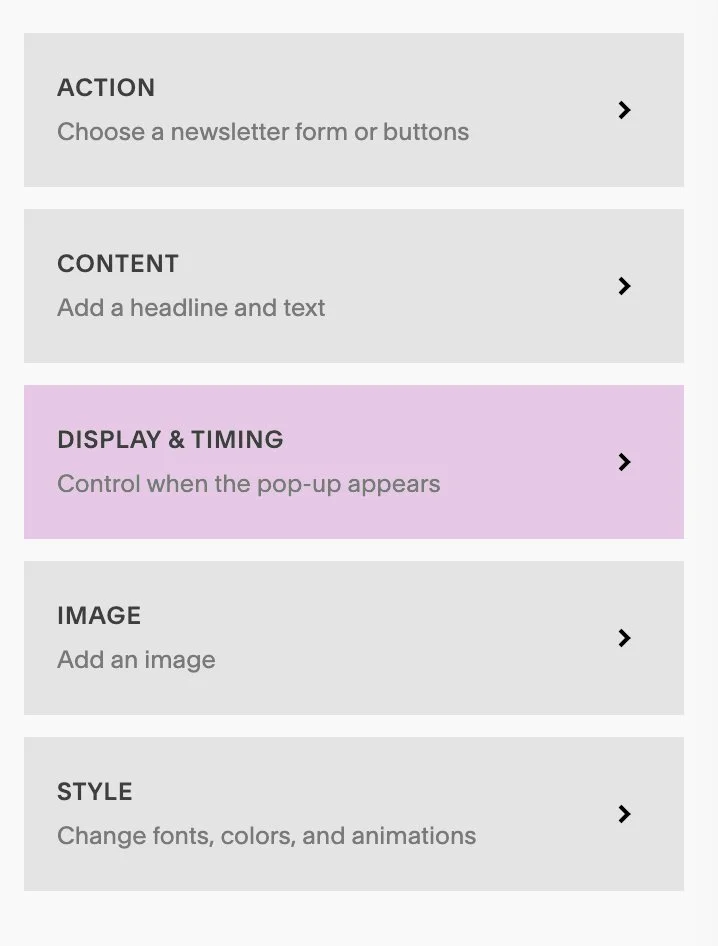
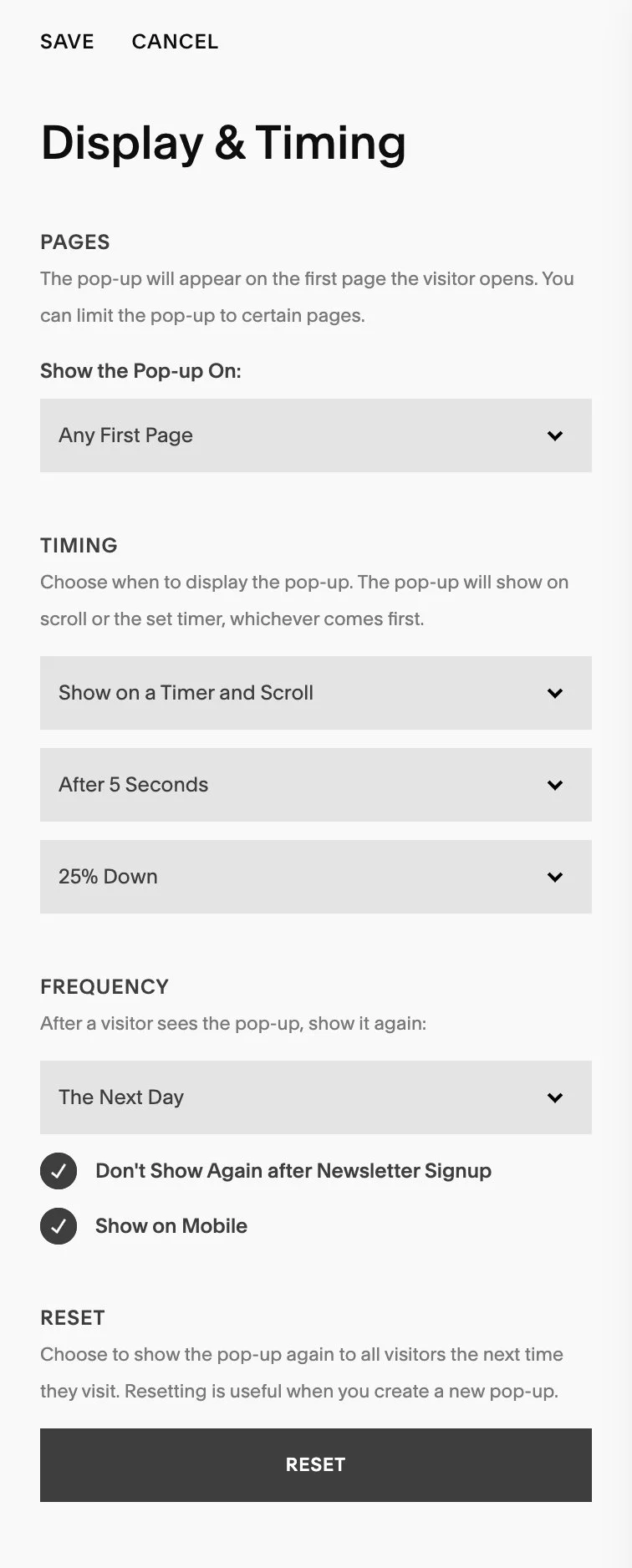
Image -
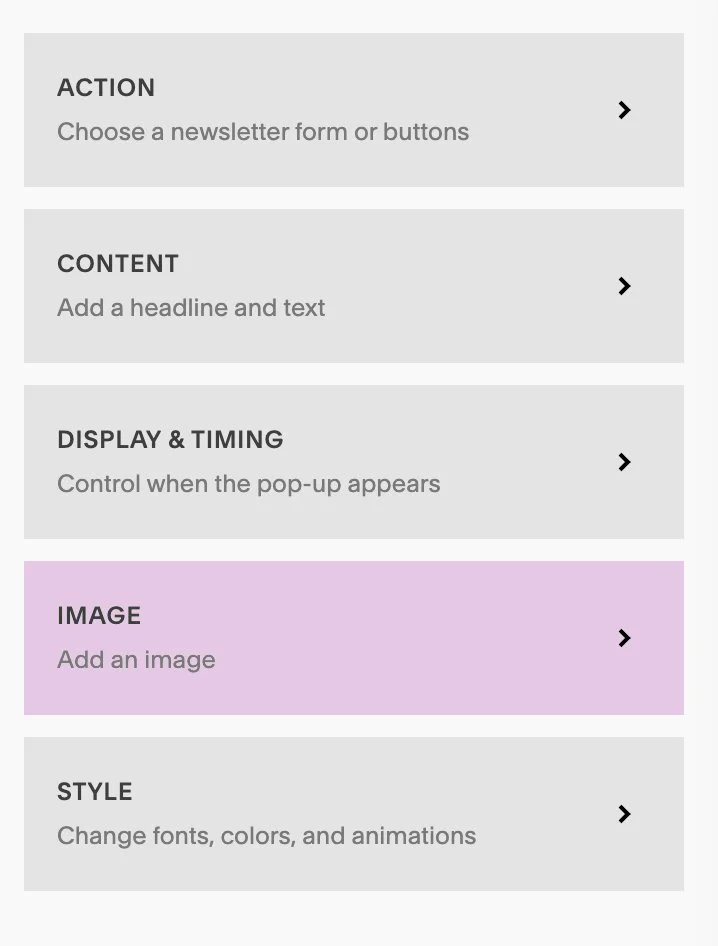
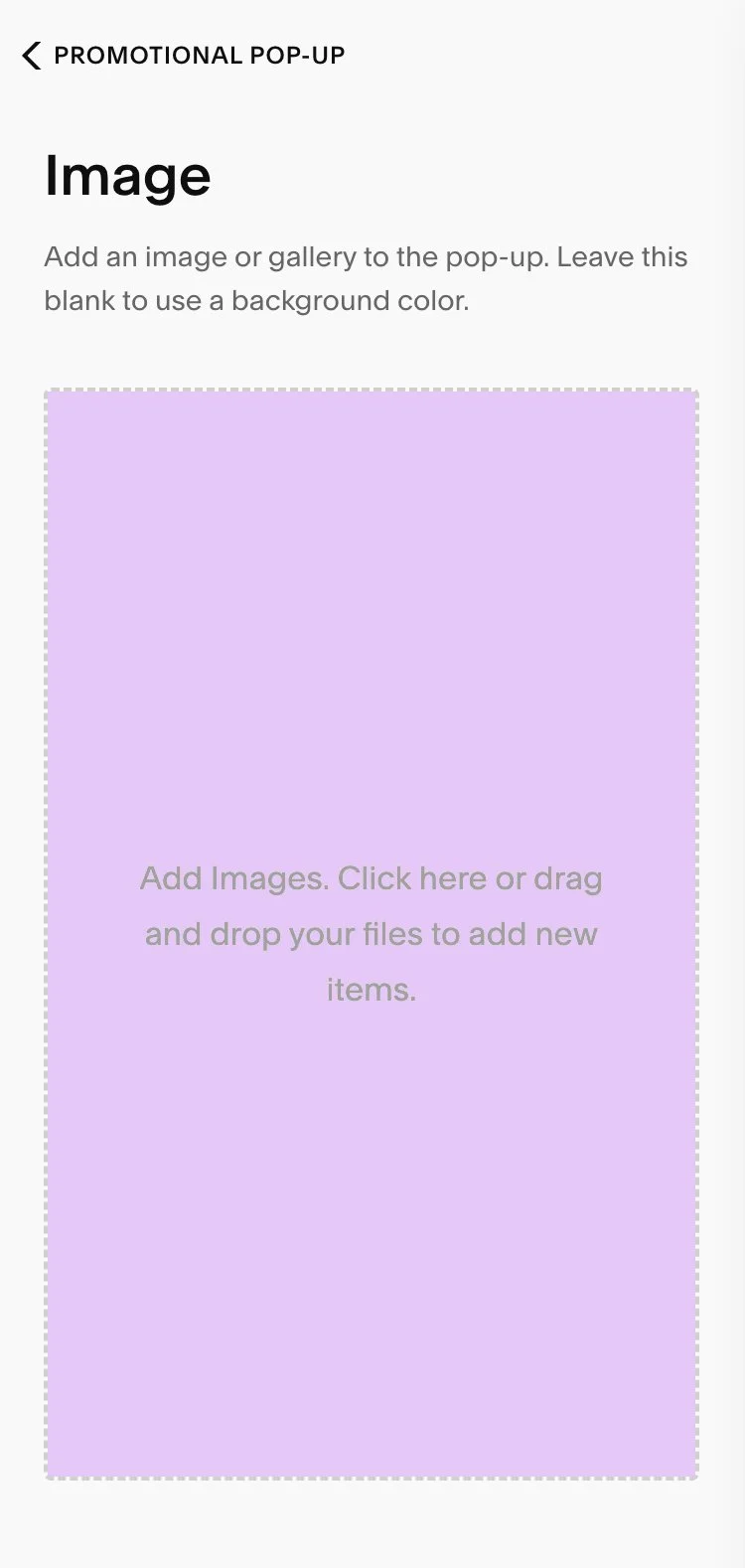
The Image section allows you to add or update images displayed in the pop-up.
Multiple images can be added
When multiple images are used, the images rotate automatically while the pop-up text and action button remain the same
5. When you are finished, select Save to apply your changes.