Update Your Content
To Add/Update Text Blocks:
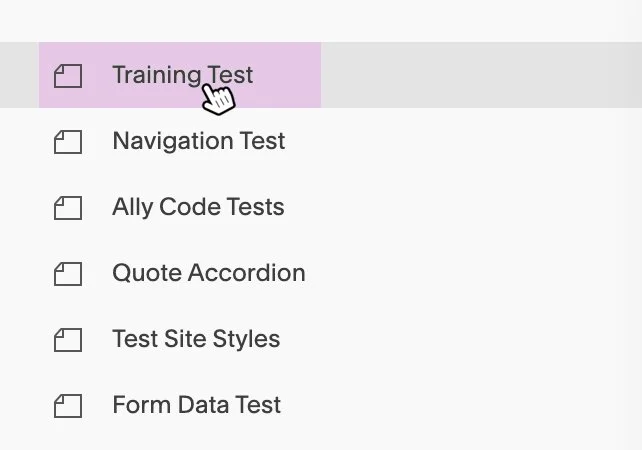
1. Select the page you want to edit from the CMS page list.
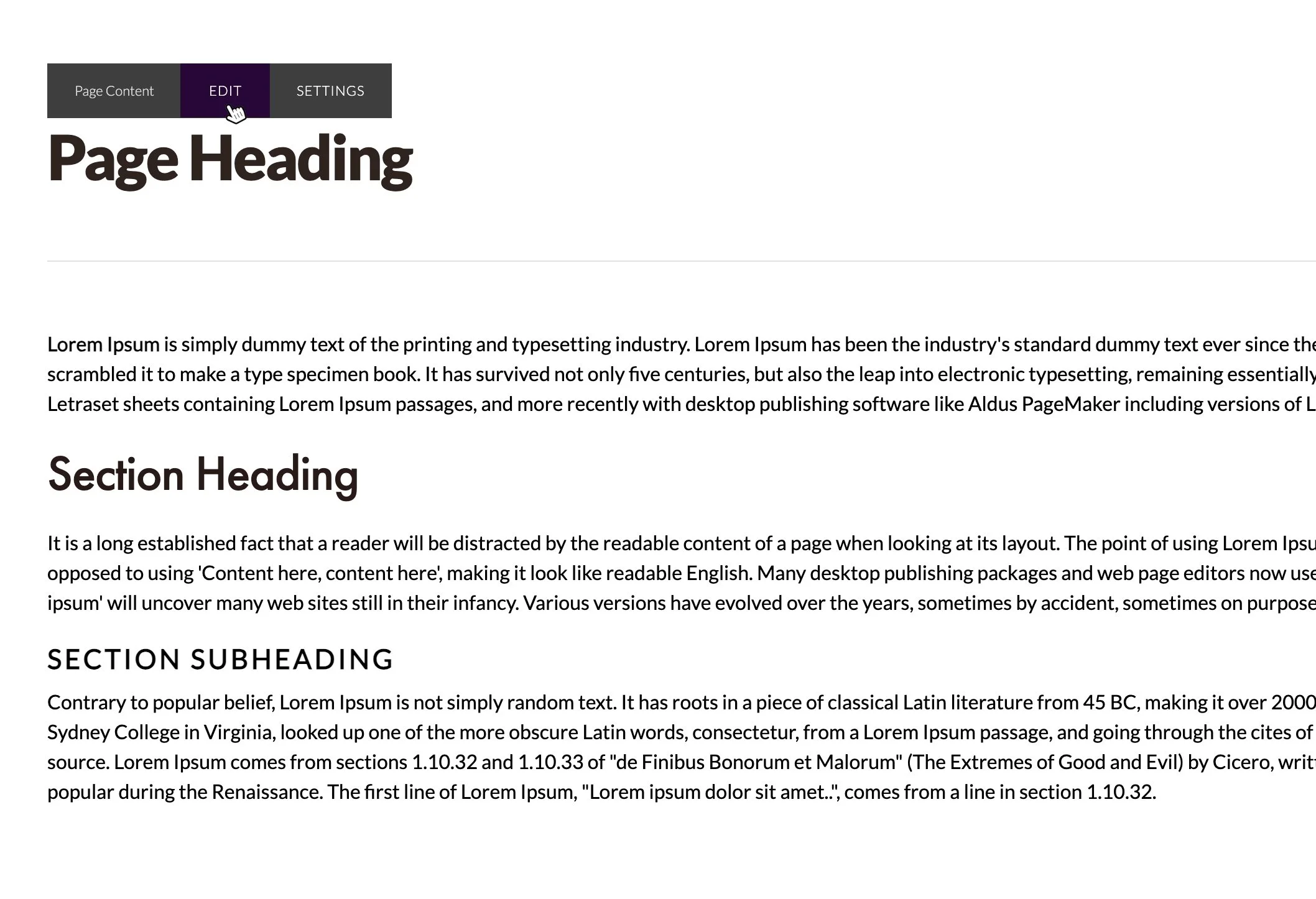
2. Activate Edit Mode for the page by selecting the Edit control associated with the page content.
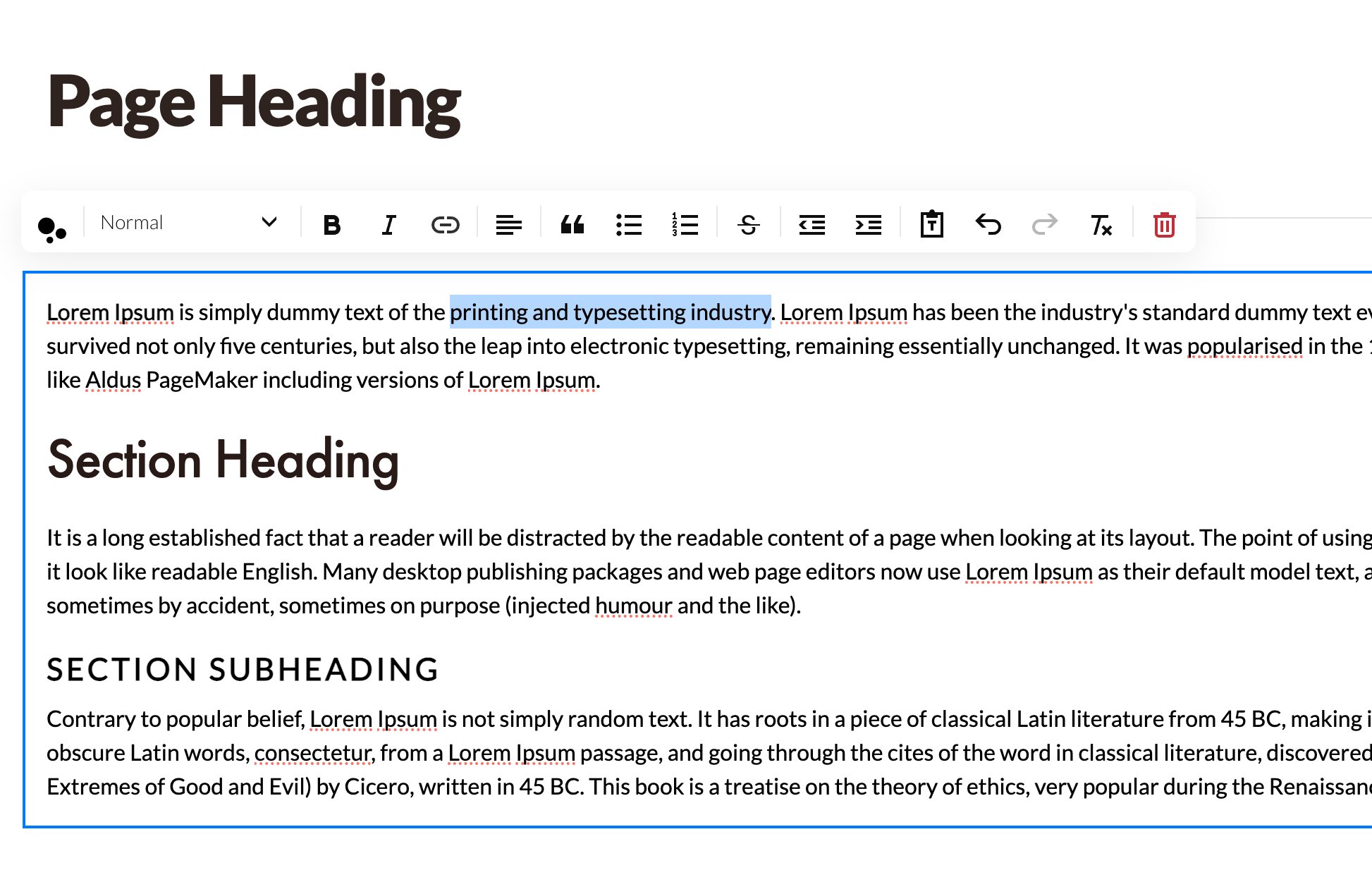
3. While in Edit Mode, you can select existing text to update it, add new text, apply formatting, and insert links.
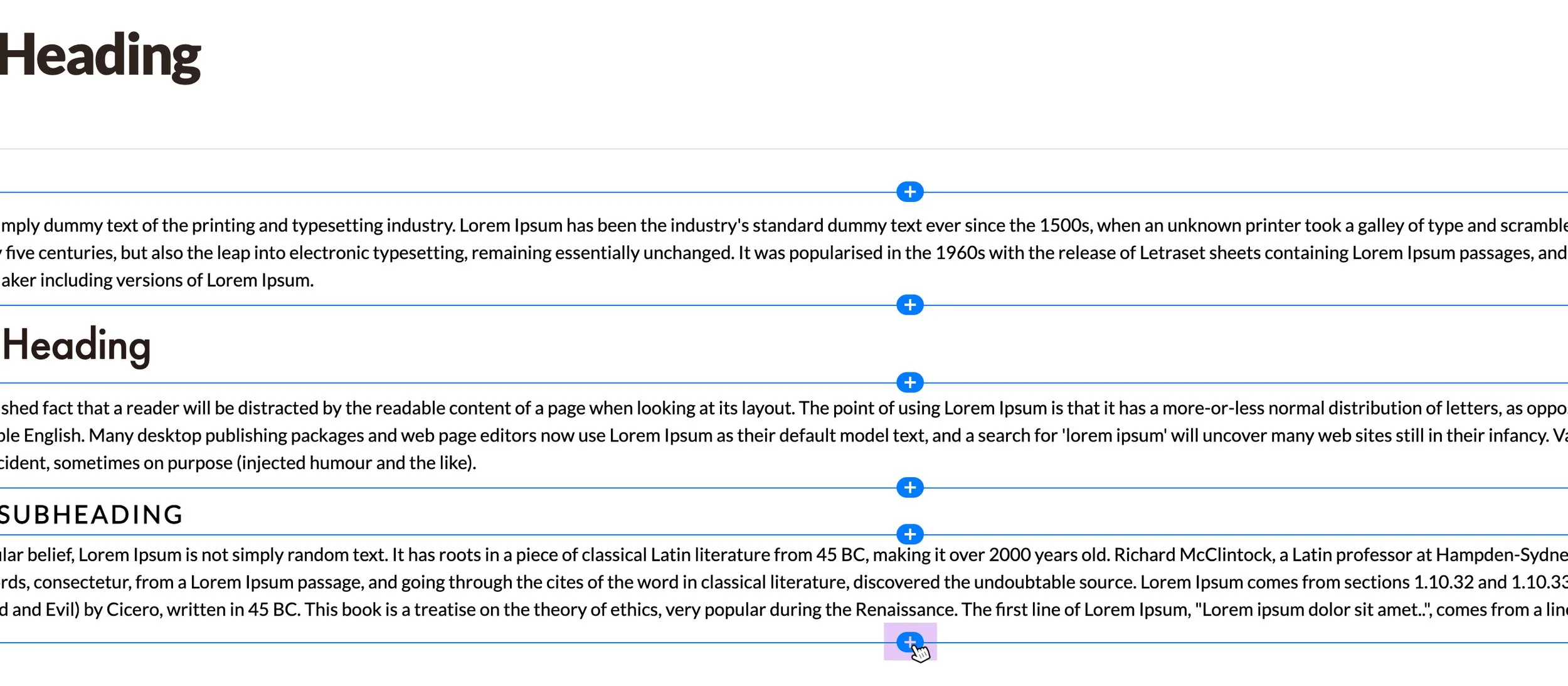
4. To add a new text block, open the Add Block option for the page content and choose where you want the new block to appear.
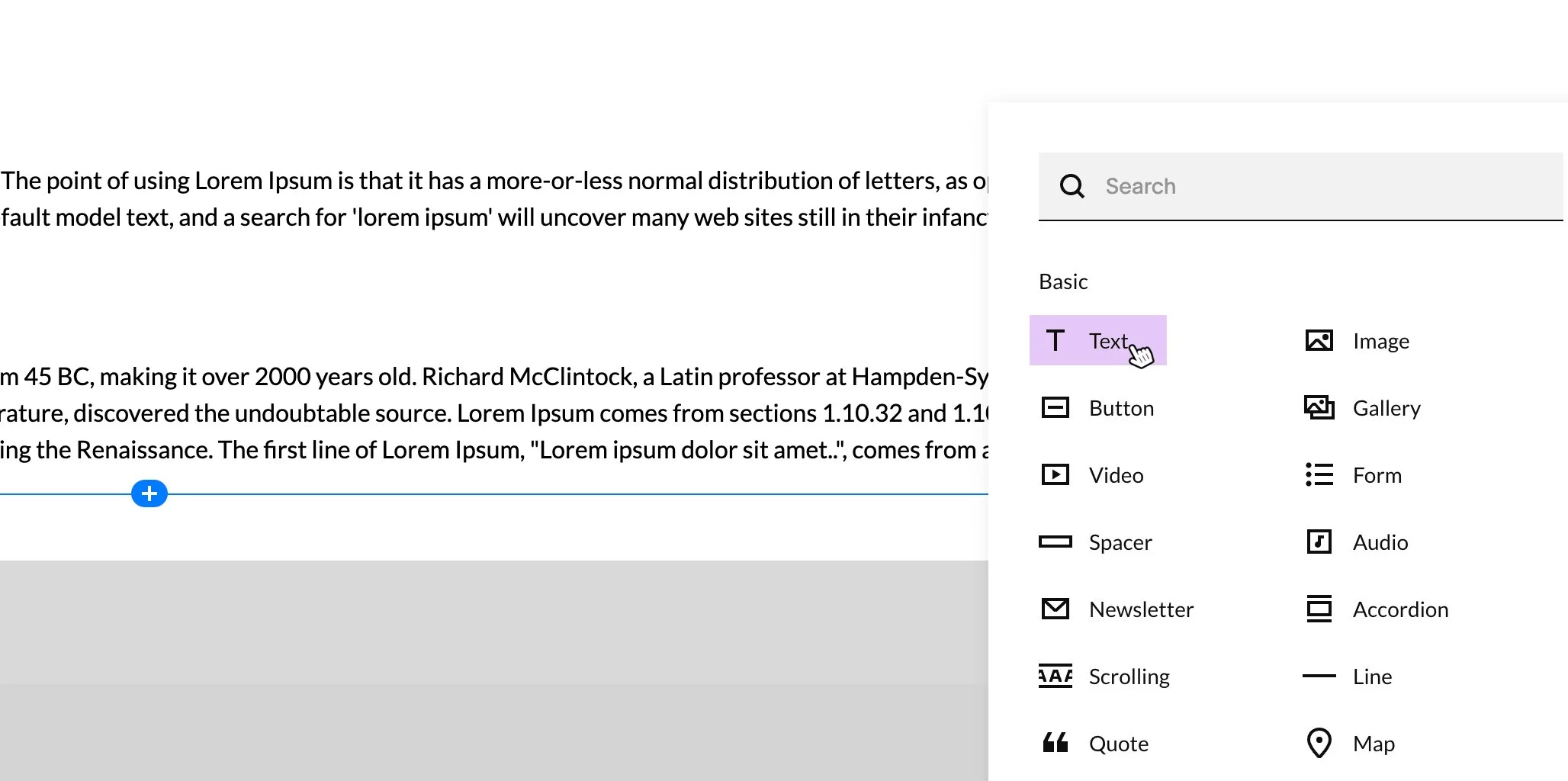
5. From the Content Block menu that opens, select Text.
(You can view a detailed walkthrough in the Text Block tutorial.)
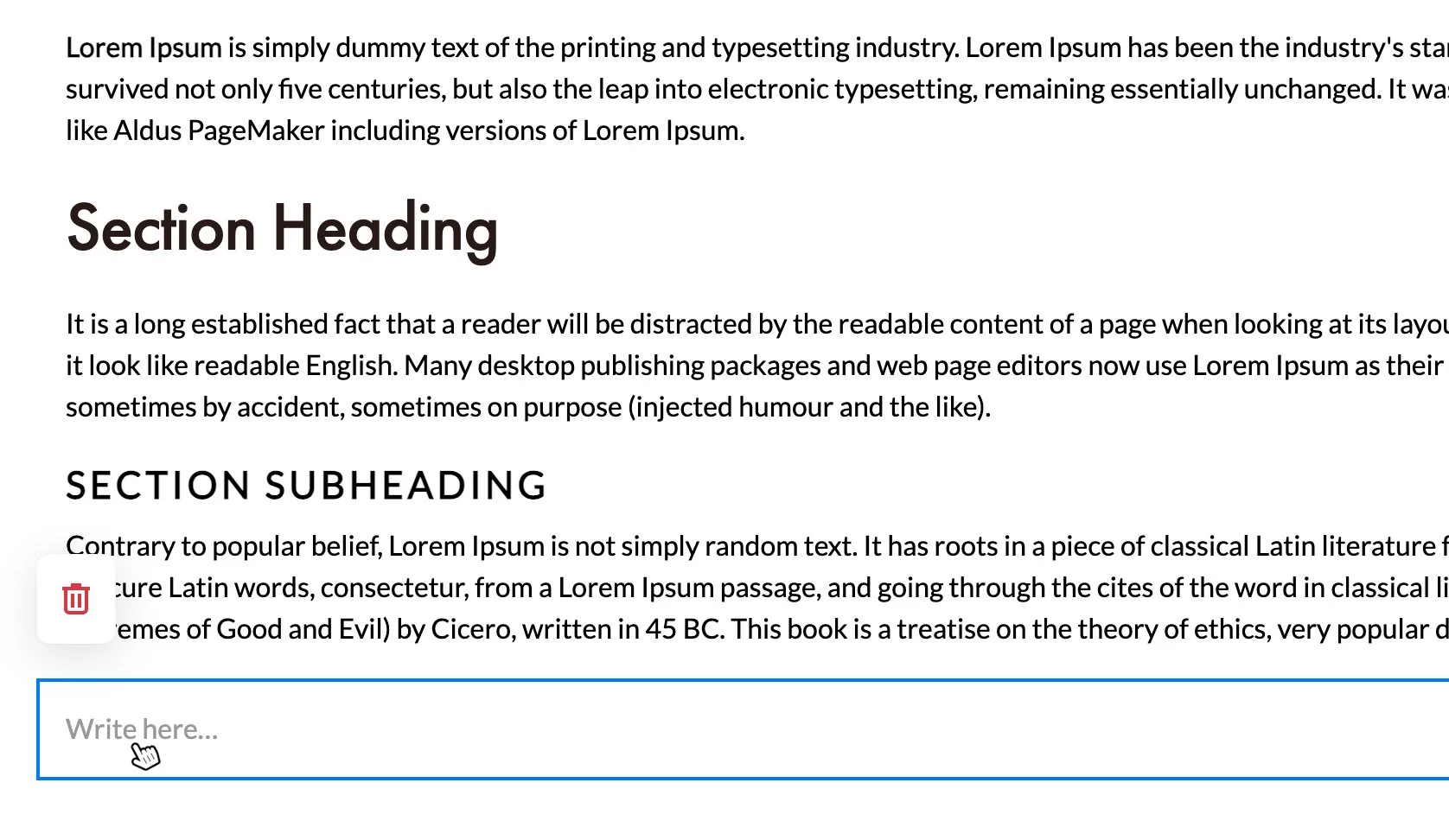
6. Select the new text block to begin entering and editing content.
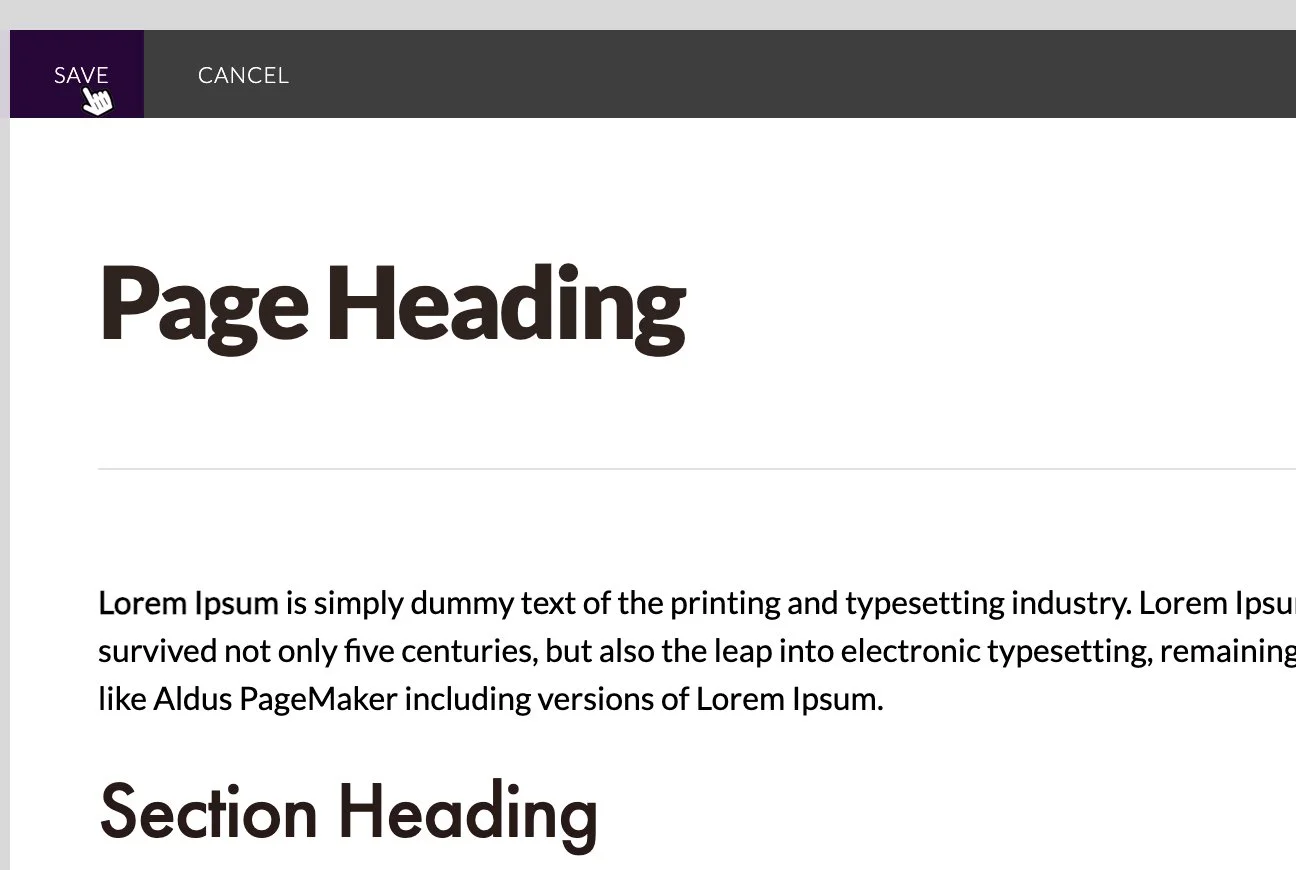
7. When you are finished, select Save to apply your changes.